

It’s always fun to look at your old pictures, go back in time, and see the changes that have appeared over the years. But what if you want to take a trip back in time and explore the previous versions of any website?
Now there can be many reasons why you want to go back in time and have a look on any website— you might want to gather some data or wanna do it just for fun. The internet is constantly evolving, and websites undergo tons of updates at a rapid pace. Unfortunately, we often lose valuable information in the process.
That’s where online historical records come into play—they allow you to glimpse into the past and explore old versions of websites captured at specific moments in time. This ability to access internet archives is not only nostalgic but also incredibly useful.
So, let’s learn how to see old versions of any website in 3 easy methods.
Why Would Anyone Need to See Old Websites?
Well, you might be wondering why anybody would have a need to check these old, outdated websites. Here are a few reasons:
- Historical Research: Old websites provide valuable insights into the evolution of web design, content, and technology. They offer a glimpse into the early stages of the internet and its progression over time, making them a valuable resource for historical research.
- Nostalgia and Nostalgic Content: We are all weak-hearted for nostalgic content. Old websites provide us with a sense of nostalgia and bring back memories of those times. Visiting these old websites can be an amazing trip down memory lane, especially for those who are the internet’s early users.
- Comparative Analysis: By comparing old websites to their modern counterparts, you can observe how web design and user experience have evolved. It allows you to analyze the changes in layout, aesthetics, functionality, and interactivity, providing insights into the advancements made in web development.
- Understanding Web Development Trends: Examining old websites helps you understand past web development trends and fads. It allows you to see what was popular at the time, such as animated GIFs, flashy backgrounds, or specific color schemes, and how those trends have changed or disappeared over the years.
- Preservation of Internet History: Old websites serve as digital artifacts, preserving a piece of Internet history. They document the early stages of online culture, business, and communication. Studying these websites helps preserve the collective memory of the internet and its impact on society.
How to See Old Versions of Any Website
There are many services available on the internet that store or retain previous versions of websites. Typically, these services capture “snapshots” of specific sites and pages upon request.
Let’s explore the top 3 services and what they bring to the table.
1. Internet Archive’s Wayback Machine
Internet Archive’s Wayback Machine is the most popular and my favorite tool for visiting the ulcer versions because of its astonishing amount of content collection. It is a nonprofit organization committed to creating a digital library encompassing websites, games, recordings, videos, and even more.
The Wayback Machine is a reliable tool that stores historical versions of websites dating back to 1996. All this with more than 550 billion archived pages.
Follow the below steps for using the Wayback machine.
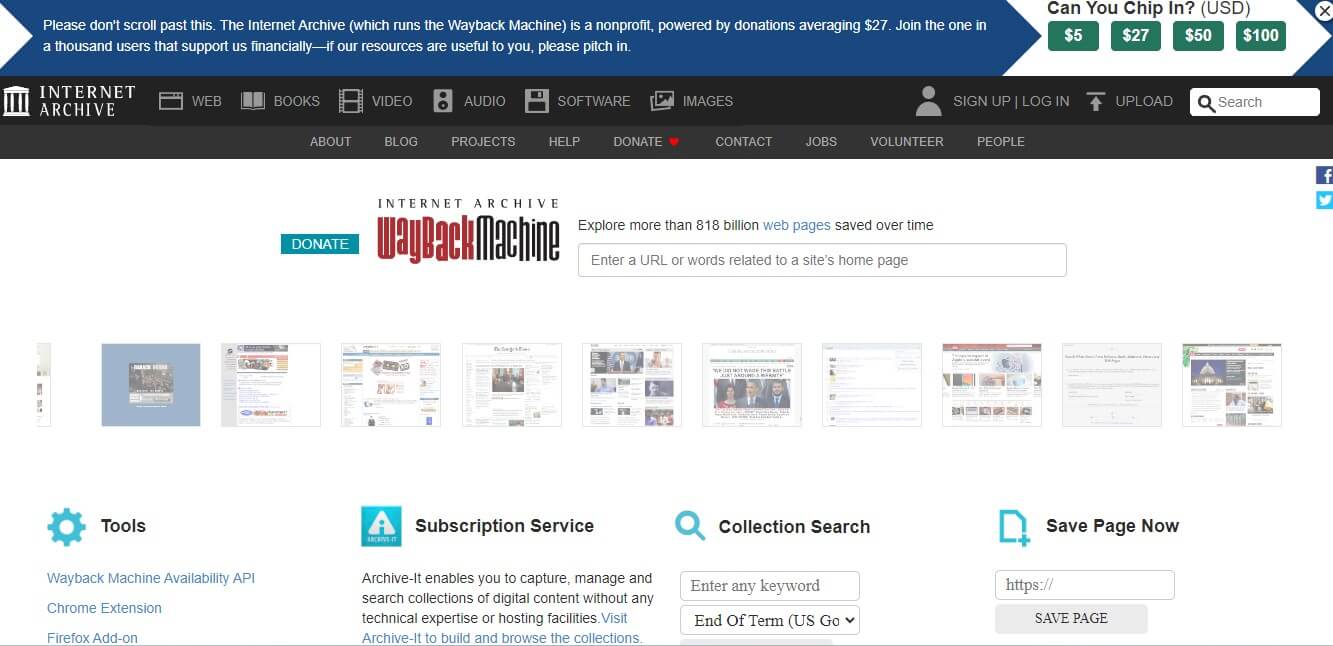
Visit the Wayback Machine website using any web browser.
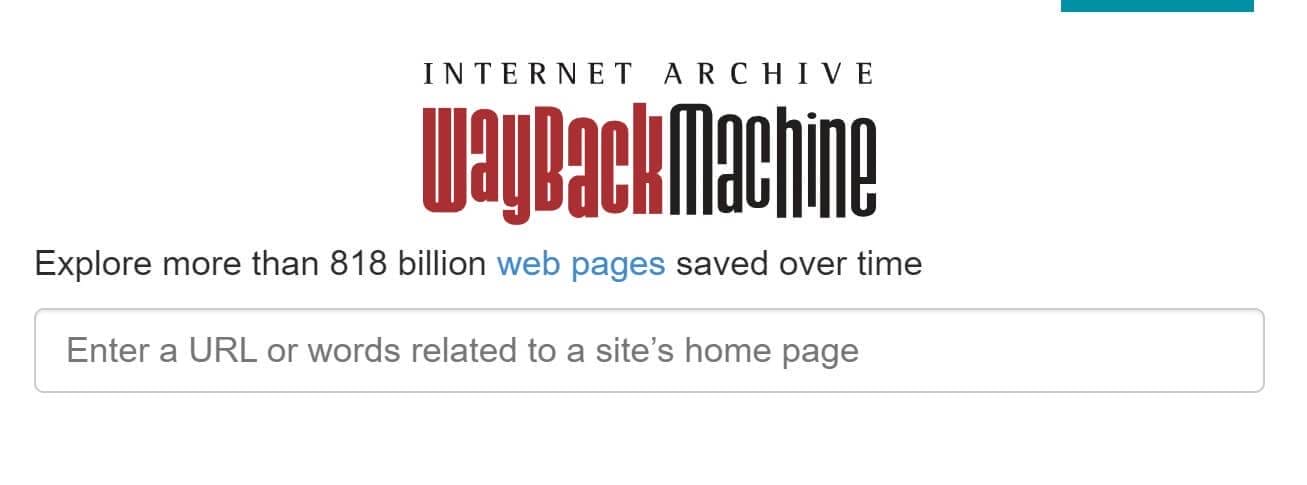
Once you’re on the Wayback Machine website, you can follow two different options for finding your desired web page. Firstly, you can enter the URL of the specific page you want to browse. Alternatively, you can use keywords to search for the required pages.
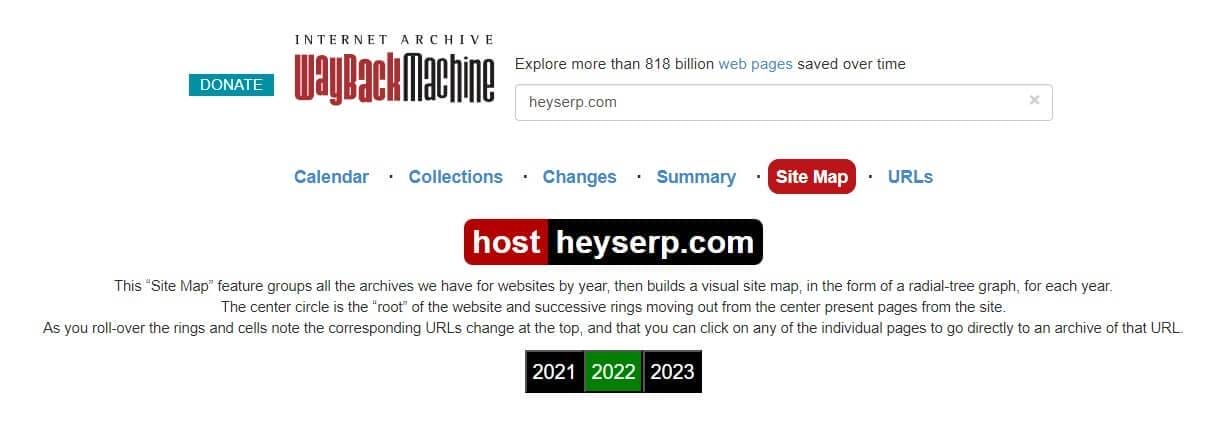
Here, to show you an example, we have typed our own website’s URL – HeySERP.com.
After entering the URL or keywords, you will see various options on the screens, such as;
- Calendar
- Collections
- Changes
- Summary
- Site Map
- URL
These options, when clicked, give you complete details of the website that you have entered the address for.
You can scroll down the timeline and keep an eye out for dates marked with blue or green circles. Clicking on these dates will lead you to either the older version of the website directly or open a pop-out menu with a list of available times.
Pick a specific time to view the website from the pop-up menu. And you will get the version of the website of that time.
2. The OldWeb.today
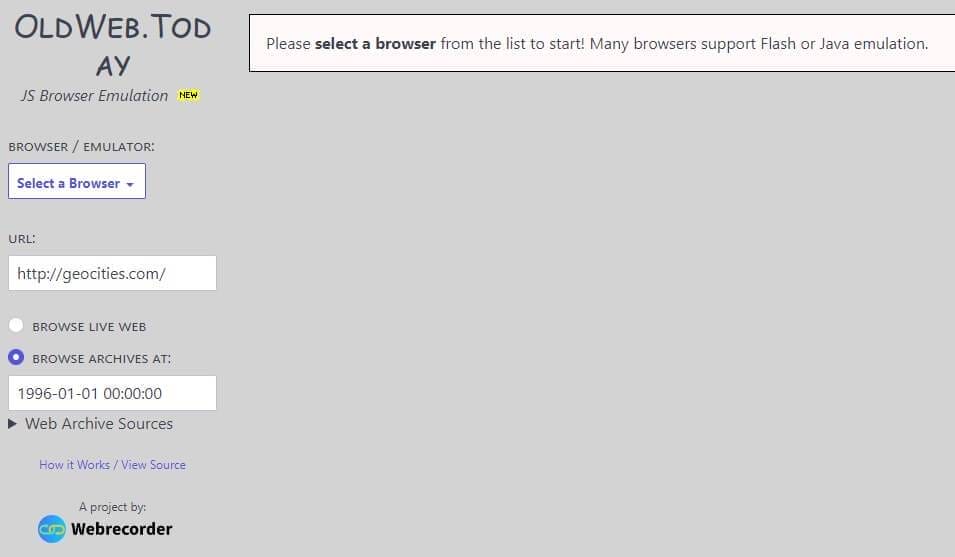
The old. web today brings back the nostalgic charm of the past by letting you explore old websites using ancient web browsers. If you’ve never had the pleasure of experiencing Netscape or those early versions of Internet Explorer, the old.web today is here to satisfy your curiosity.
By tapping into a variety of archives, such as the Internet Archive and national libraries worldwide, this service offers an impressively comprehensive collection of website copies.
However, it’s important to note that simulating outdated browsers and retrieving data from multiple sources does take some time. When you visit the OldWeb.today, you might find yourself in a virtual line, patiently waiting for your turn to see the website you’ve been eager to see.
Using OldWeb.today is easy; all you have to do is:
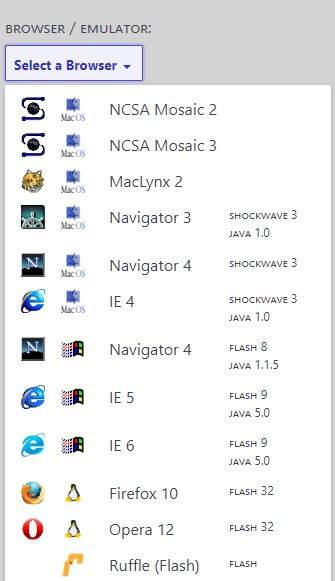
Choose your desired browser from the left side of the screen. You have multiple options like Firefox 10, Opera 12, IE 5, and more.
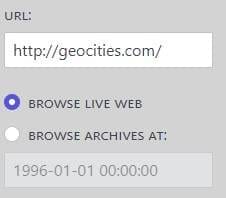
Now drop the URL of the website, and it will load.
This website also gives you two options. You can “Browse Live Web” if the site is still active. This will show you the website’s conditions in the current real-time.
Another option is to browse archives at a particular date and time. If you enter the desired date and time on which you want to see what a website looks like, you can enter the details ad click submit.
Further, Click on the reload button if you want to reload, and Voila, you can see the website that you want now!
3. The American Library of Congress

This is home to an enormous assortment of books, old newspapers, recordings, and websites. However, its website collection operates uniquely compared to our previous suggestions. If you are going here for the first time and trying to search for a specific website using the library’s search feature, there is a higher chance of you encountering a disorganized set of results.
However, once you click on individual links, the library presents you with an opportunity to explore the pages it has stored. It employs a system similar to the well-known Wayback Machine, allowing you to delve into past versions of websites. In addition to preserving website pages, the library also saves descriptions and other valuable information for each website in its archive. This aspect proves particularly beneficial for research purposes.
Furthermore, the library offers an extensive category system that encompasses all its entries. So, even without searching, you can freely navigate through the archive itself. On a separate note, the library boasts an extensive collection of images, many of which are sourced from the web. This feature renders it a valuable resource for obtaining stock graphics, adding a refreshing alternative to older options.
So, how do you do that step-by-step?
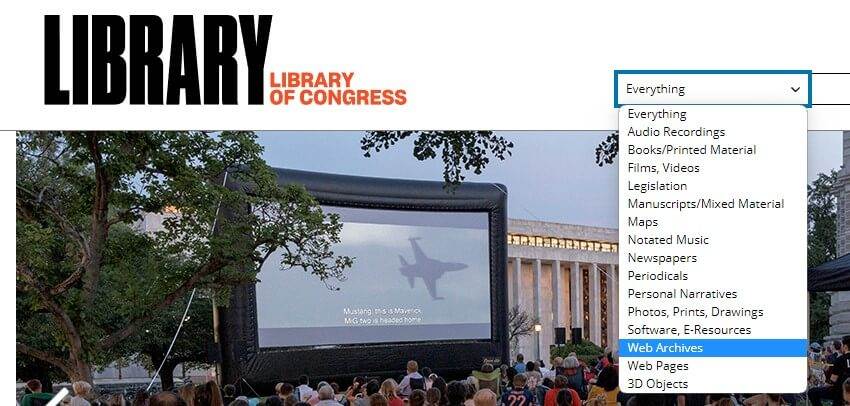
In the top right corner, you can see a search bar that says “everything.” Click on it, and you will see a list of options in the drop-down menu.
Click on the “Web Archives” option to search for previous versions of the websites. Enter the URL of the website that you want to search for.
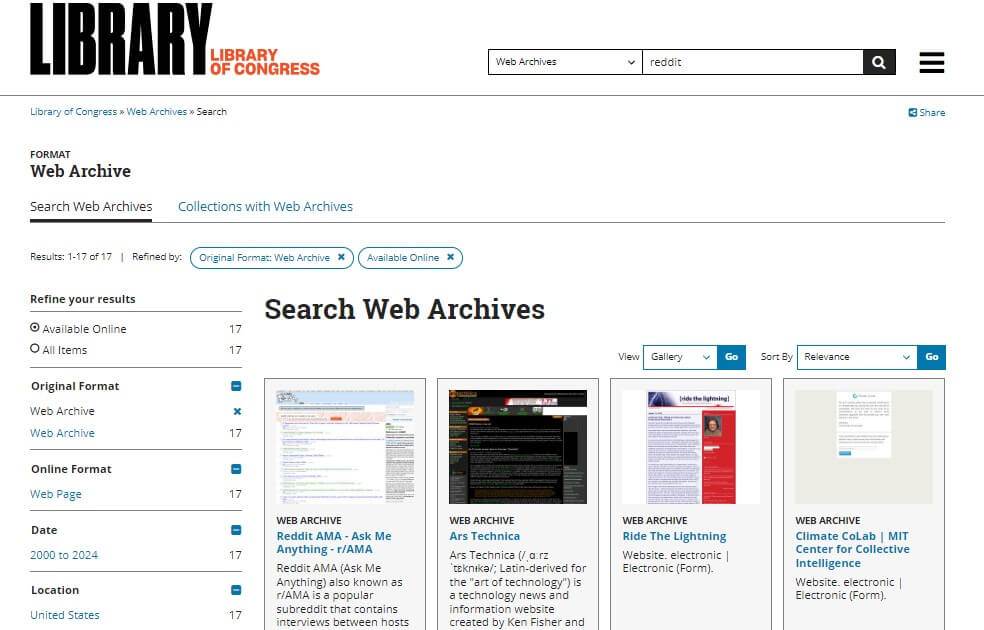
To show you an example, we have typed “Reddit” in the search bar. As you can see, various versions of that website are available after the search.
You can use the Filter option on the left side of the page to search for your desired version of the website.
Library of Congress maintains archives of various websites, and it is one of the easiest ways to look at the older versions of websites.
Frequently Asked Questions: (FAQ)
We have gathered the most important questions that people have asked us in this FAQ section.
Q. What are some simple tools to access previous versions of a website?
There are three commonly used tools to view previous versions of a website: utilizing the Wayback Machine, the old.web today, and American Library of Congress.
Q. What is the Wayback Machine?
The Wayback Machine is an online digital archive maintained by the Internet Archive. It enables you to browse through historical snapshots of websites.
Q. How can I use the Wayback Machine?
To use the Wayback Machine, simply visit the Internet Archive’s website (archive.org) and enter the URL of the desired website into the search box. A calendar with highlighted dates indicating the availability of snapshots will be displayed. Choose a specific date and click on it to access the archived version of the website from that day.
Q. Can I access all versions of a website using the Wayback Machine?
No! While the Wayback Machine strives to archive as much of the web as possible, it may not have snapshots for every single day of a website’s existence.
Wrapping Up
There are various reasons why you might find it valuable to explore previous iterations of a website. For instance, you might want to examine the historical changes in its design, content, or functionality. Researchers and historians frequently rely on archived web pages to study the evolution of websites over time.
That’s why we have selected the top 3 tools which are easy to use and cover most of the websites which makes it easy for you to collect information.
If this article was helpful, consider sharing it. You can find an old game to play using the Wayback Machine and invite your friends to play the cool game to enjoy the nostalgia of the 90s.



