

Disclaimer: “This post contains affiliate links. If you make a purchase through these links, I may earn a commission at no extra cost to you.“
TL;DR: WordPress.com made plugins available on every paid plan in April 2026 — including the $4/month Personal plan. I installed 10 popular plugins on a real Personal plan site and tested each one. Six worked perfectly (Rank Math SEO, WPForms, Site Kit by Google, MailPoet, WPCode, Imagify). Four categories are blocked because WordPress.com handles those functions natively. Here’s exactly what happened.
Wait, WordPress.com Has Plugins on the $4 Plan Now?
Yes. And this is a BIG deal.
For years, WordPress.com locked plugin access behind the Business plan at $25/month. If you wanted to install Rank Math, WPForms, or literally any third-party plugin, you had to pay six times more than the basic plan.
On April 2, 2026, WordPress.com changed that. Every paid plan — starting at $4/month — now gets access to 50,000+ plugins from the WordPress Plugin Directory, plus Global Styles, custom font uploads, and CSS customization.
I had to test this myself. So I grabbed a WordPress.com Personal plan, set up a fresh site, and started installing plugins.
Here’s what actually happened.
My Test Setup
I’m using a WordPress.com Personal plan ($4/month) on a fresh site. No custom domain, no upgrades — just the cheapest paid plan available.
The goal: install 10 of the most popular free WordPress plugins and see which ones actually work on this plan.
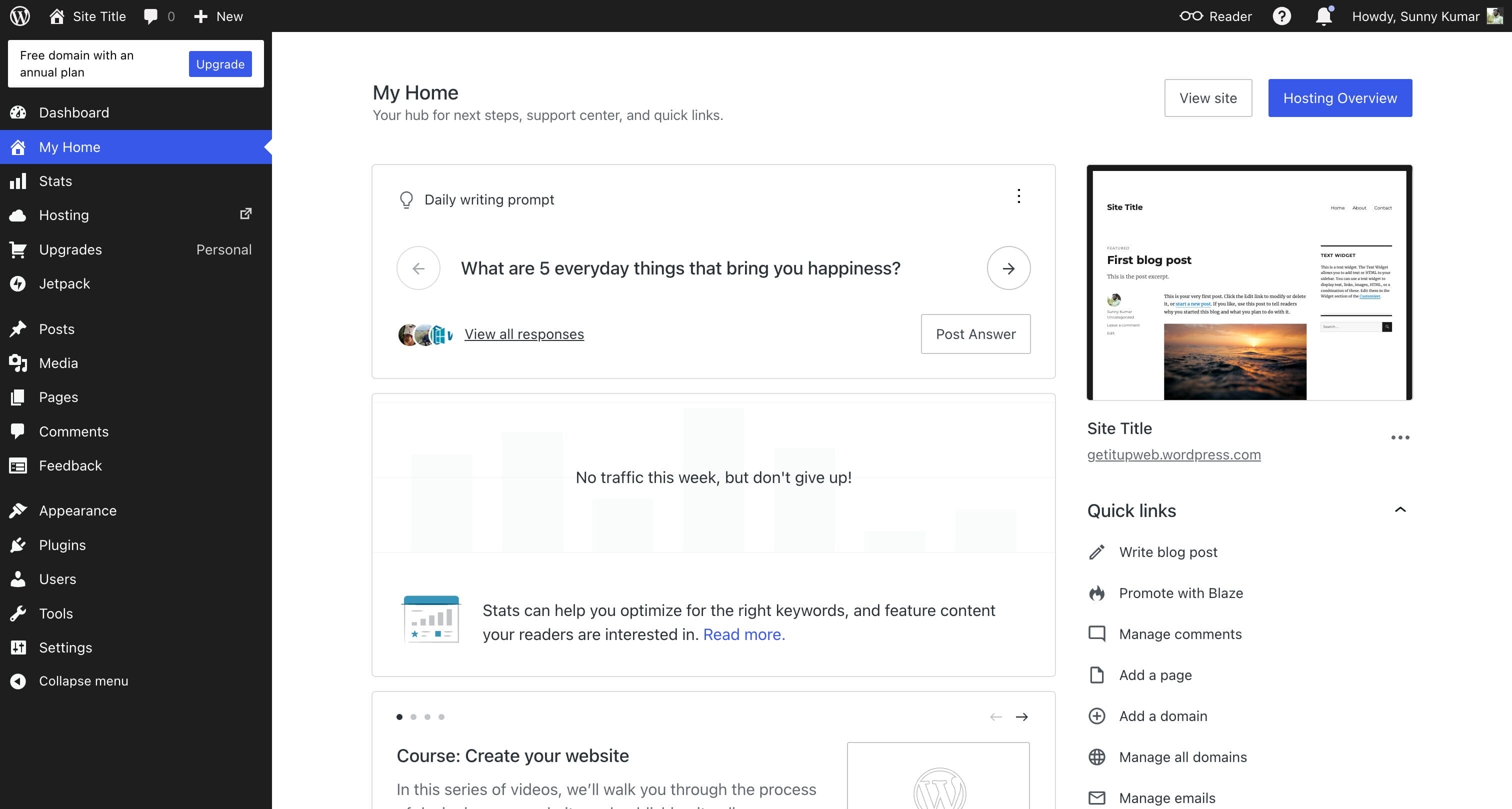
The First Surprise: Your Site URL Changes
Here’s something nobody warns you about.
The moment you install your first plugin, WordPress.com shows a dialog saying your site address will change from yoursite.wordpress.com to yoursite.wpcomstaging.com. Old visitors get automatically redirected, but it’s still unexpected if you’re not prepared for it.
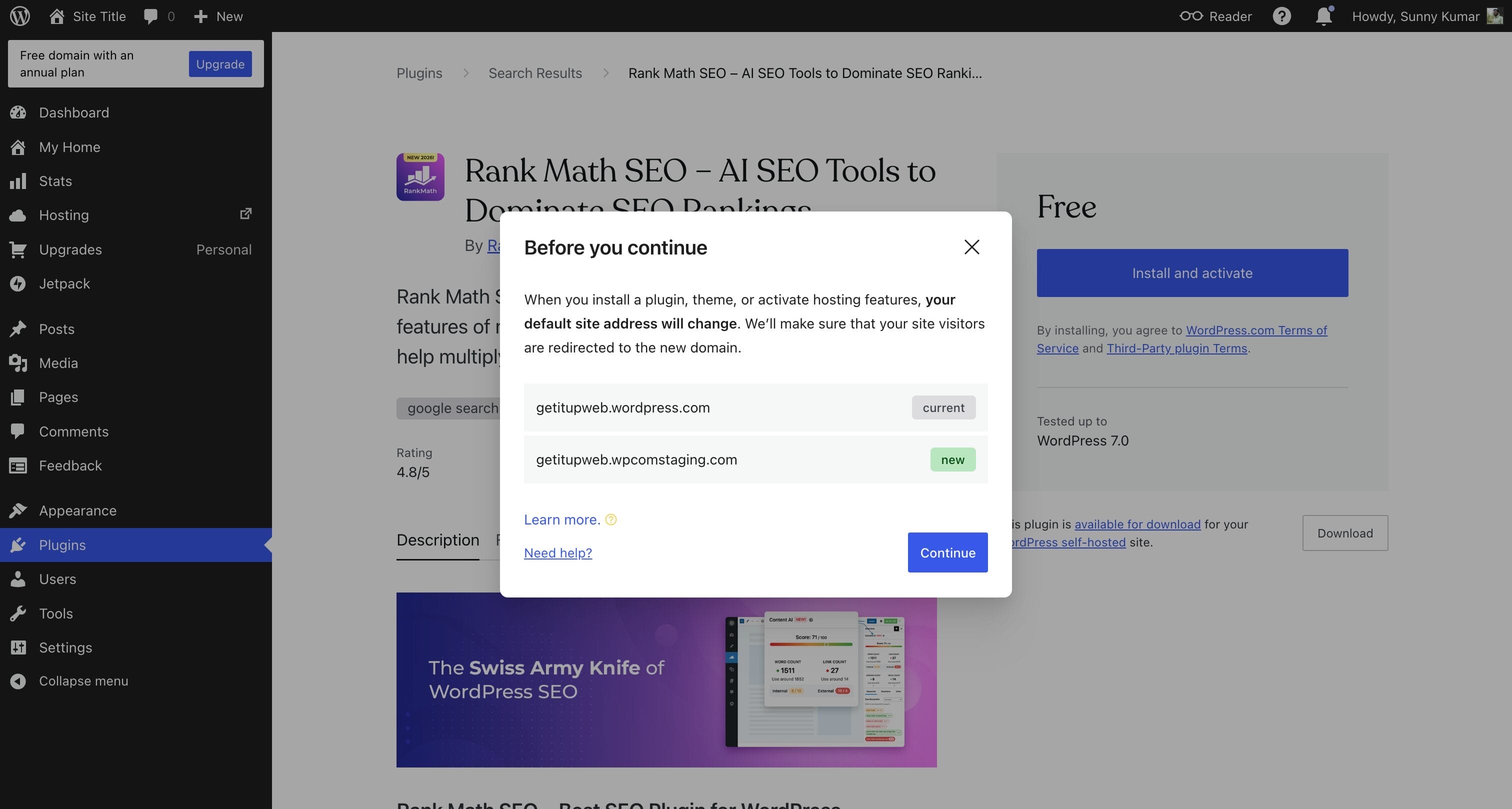
After clicking “Continue,” you’ll see a fun animation saying “Flipping the switches” while WordPress.com transitions your site to support plugins. The whole process took about 2-3 minutes for me.

Once that’s done, your site is fully plugin-ready. Every plugin after the first one installs in seconds.
6 Plugins That Worked Perfectly
1. Rank Math SEO (Free — 3M+ Installs, 4.8★)
This was my first install. Rank Math is the SEO plugin I use on all my sites, and it works on WordPress.com’s Personal plan without any issues.
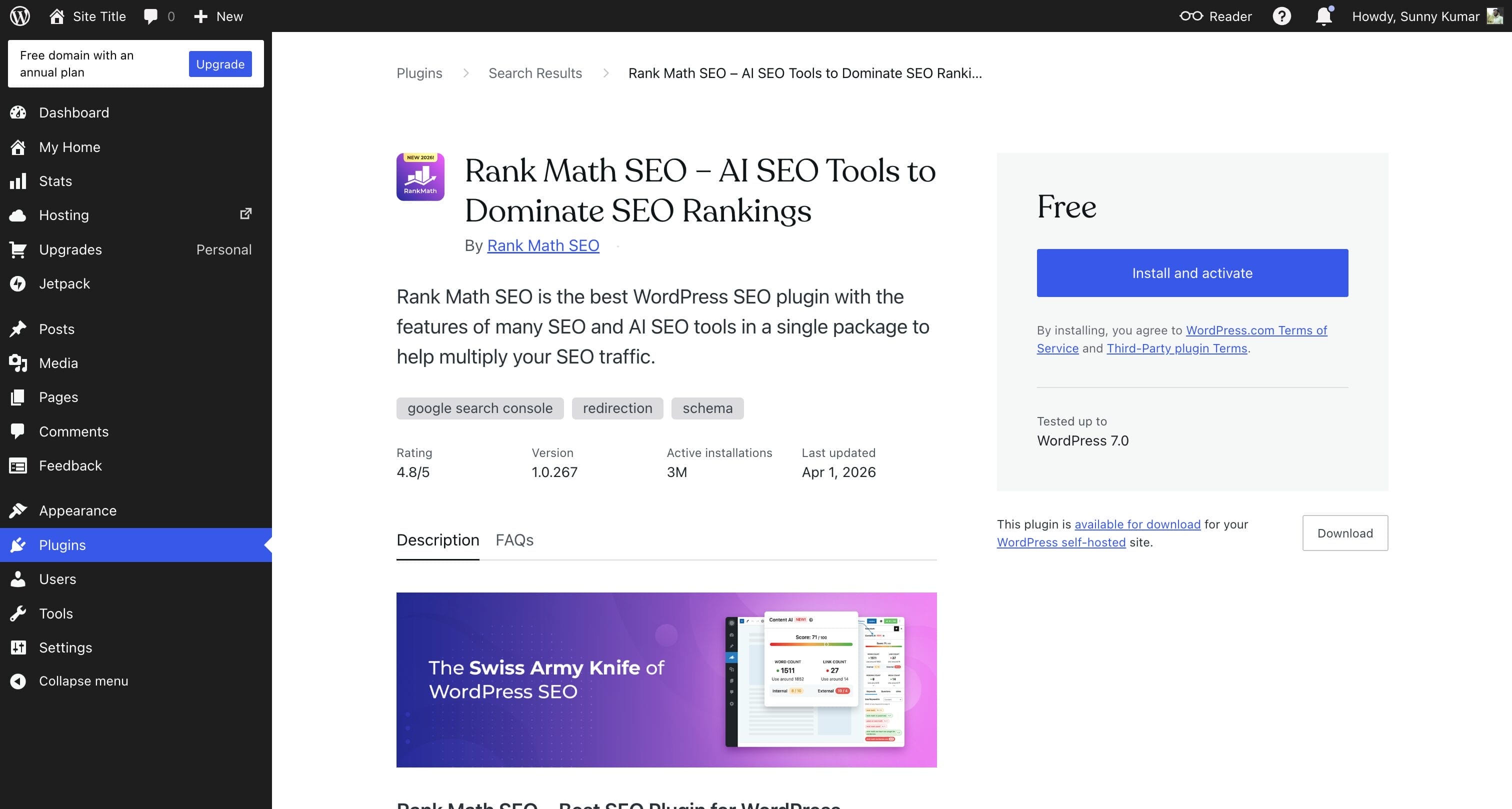
After activation, Rank Math’s setup wizard appeared, and the full dashboard with SEO analysis, keyword tracking, schema markup, and sitemap settings all loaded correctly.
Why this matters: WordPress.com includes basic SEO through Jetpack, but it’s nowhere close to what Rank Math offers. With Rank Math, you get on-page SEO analysis, unlimited focus keywords, 16+ schema types, Google Search Console integration, and 404 monitoring — all free. For a $4/month blogger who previously had zero SEO tools, this single plugin transforms their site’s search visibility.
Verdict: Works perfectly. No limitations.
2. WPForms Lite (Free — 6M+ Installs, 4.8★)
The most popular form builder for WordPress. I installed it to see if it works on the Personal plan.
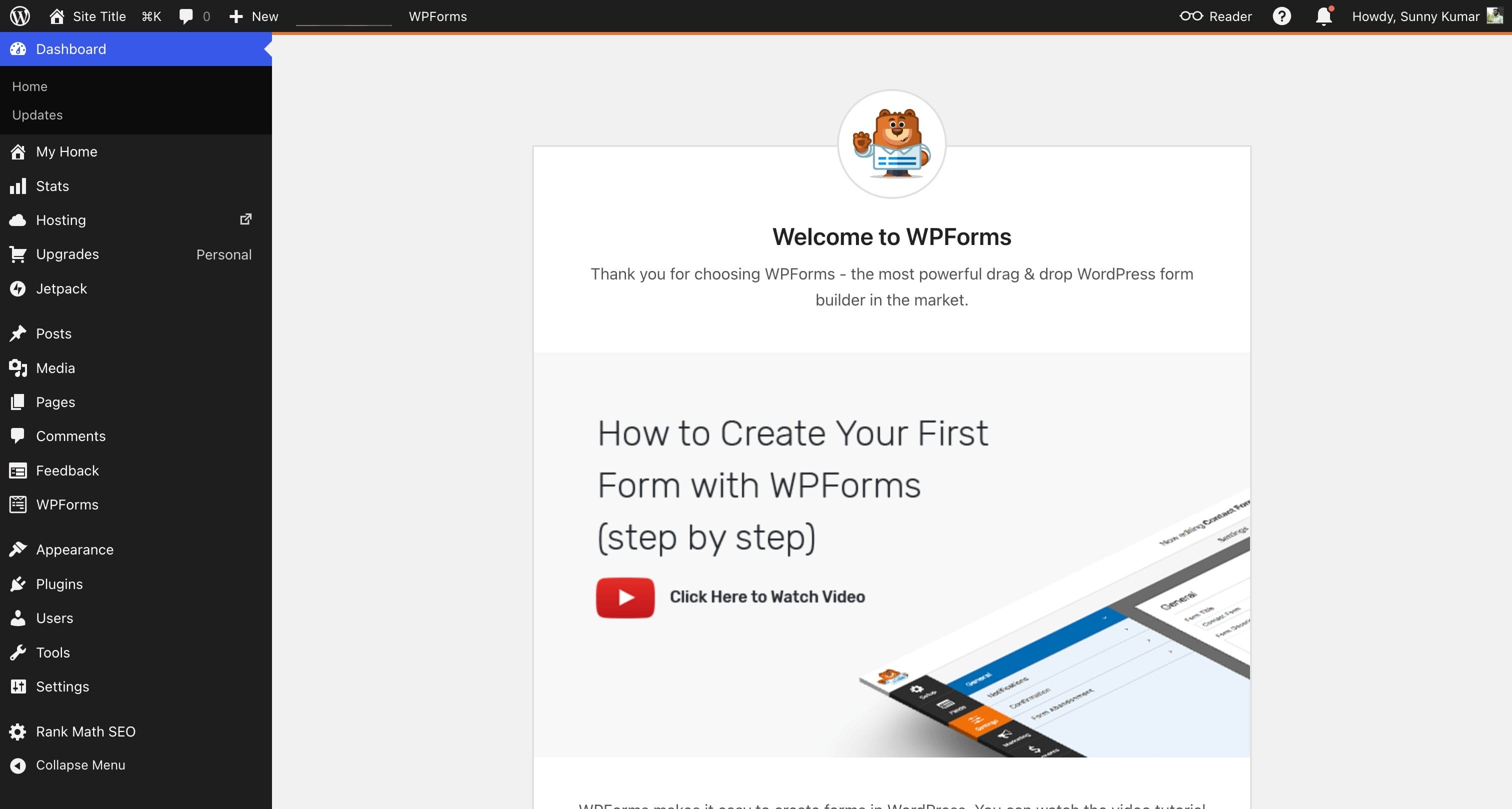
It installed, activated, and the drag-and-drop form builder worked exactly as expected. I could create contact forms, feedback forms, and even payment forms with Stripe integration.
Why this matters: WordPress.com includes a basic Jetpack contact form, but WPForms is on a different level — 2,100+ templates, conditional logic, file uploads, payment integration, and a visual builder. If you need anything beyond a basic “name + email + message” form, WPForms is essential.
Verdict: Works perfectly. Full drag-and-drop builder functional.
3. Site Kit by Google (Free — 5M+ Installs, 4.2★)
Google’s official WordPress plugin that connects Analytics, Search Console, AdSense, and PageSpeed Insights to your dashboard.
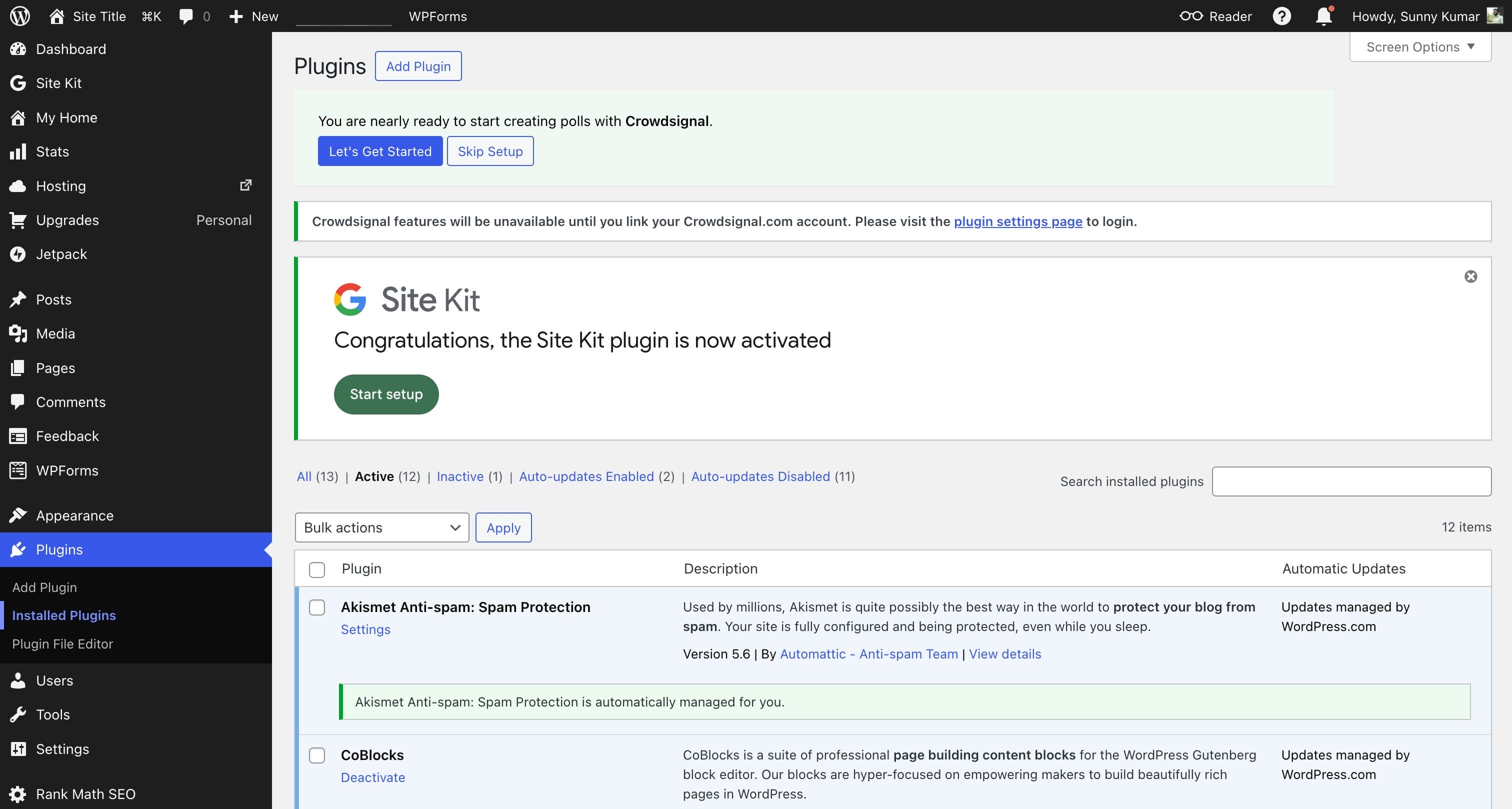
Installed and activated without issues. The setup wizard lets you connect your Google account and pull Analytics and Search Console data directly into WordPress.
Why this matters: WordPress.com has Jetpack Stats built in, but it’s limited compared to Google Analytics 4. Site Kit gives you the full GA4 dashboard, Search Console keyword data, AdSense earnings, and PageSpeed scores — all inside WordPress. For bloggers serious about understanding their traffic, this is essential.
Verdict: Works perfectly. Google account connection successful.
4. MailPoet (Free — 500K+ Installs, 4.4★)
Full email marketing platform built directly into WordPress. Create newsletters, automated welcome emails, and signup forms without leaving your dashboard.
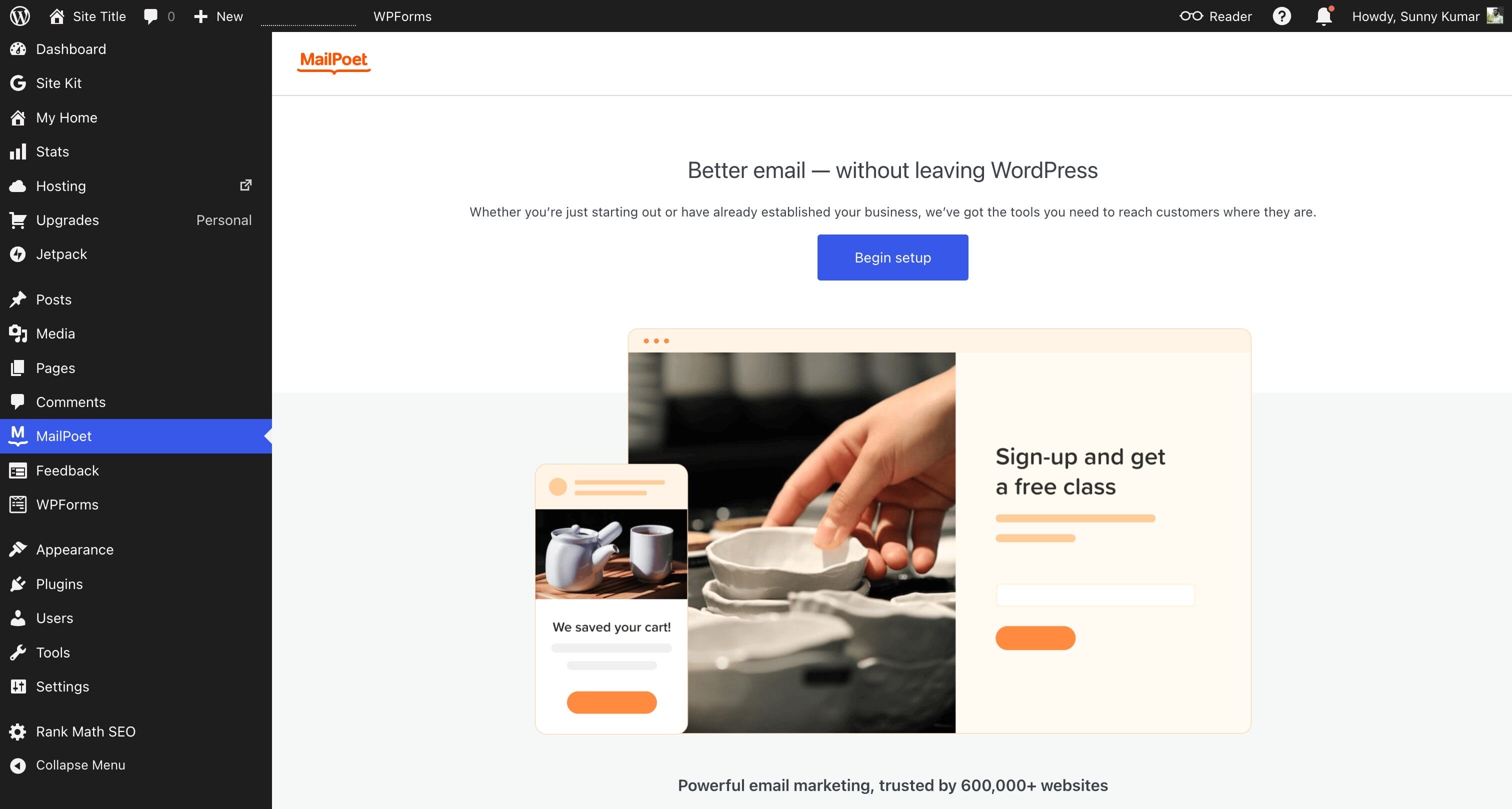
Installed, activated, and the email builder loaded perfectly. You can create newsletter templates, set up automated post notification emails, and manage subscriber lists — all for free (up to 1,000 subscribers).
Why this matters: Email marketing services like Mailchimp or ConvertKit cost $10-30+/month. MailPoet eliminates that cost for small bloggers. Building an email list from day one is the smartest thing a blogger can do, and now you can do it on a $4/month plan.
Verdict: Works perfectly. Email editor and signup forms functional.
5. WPCode (Free — 3M+ Installs, 4.9★)
Code snippet manager that lets you add tracking codes, Google Analytics scripts, custom CSS, and AdSense code without editing theme files.
Why this matters: WordPress.com’s Personal plan historically had limited ways to add custom code. WPCode lets you safely insert Google Analytics tracking, AdSense ads, Facebook Pixel, custom CSS tweaks, and verification codes — all through an interface that prevents site-breaking errors. With 2,000+ pre-built snippets in their library, you don’t even need to write code yourself.
Verdict: Works perfectly. Code snippet library accessible.
6. Imagify (Free — 1M+ Installs, 4.3★)
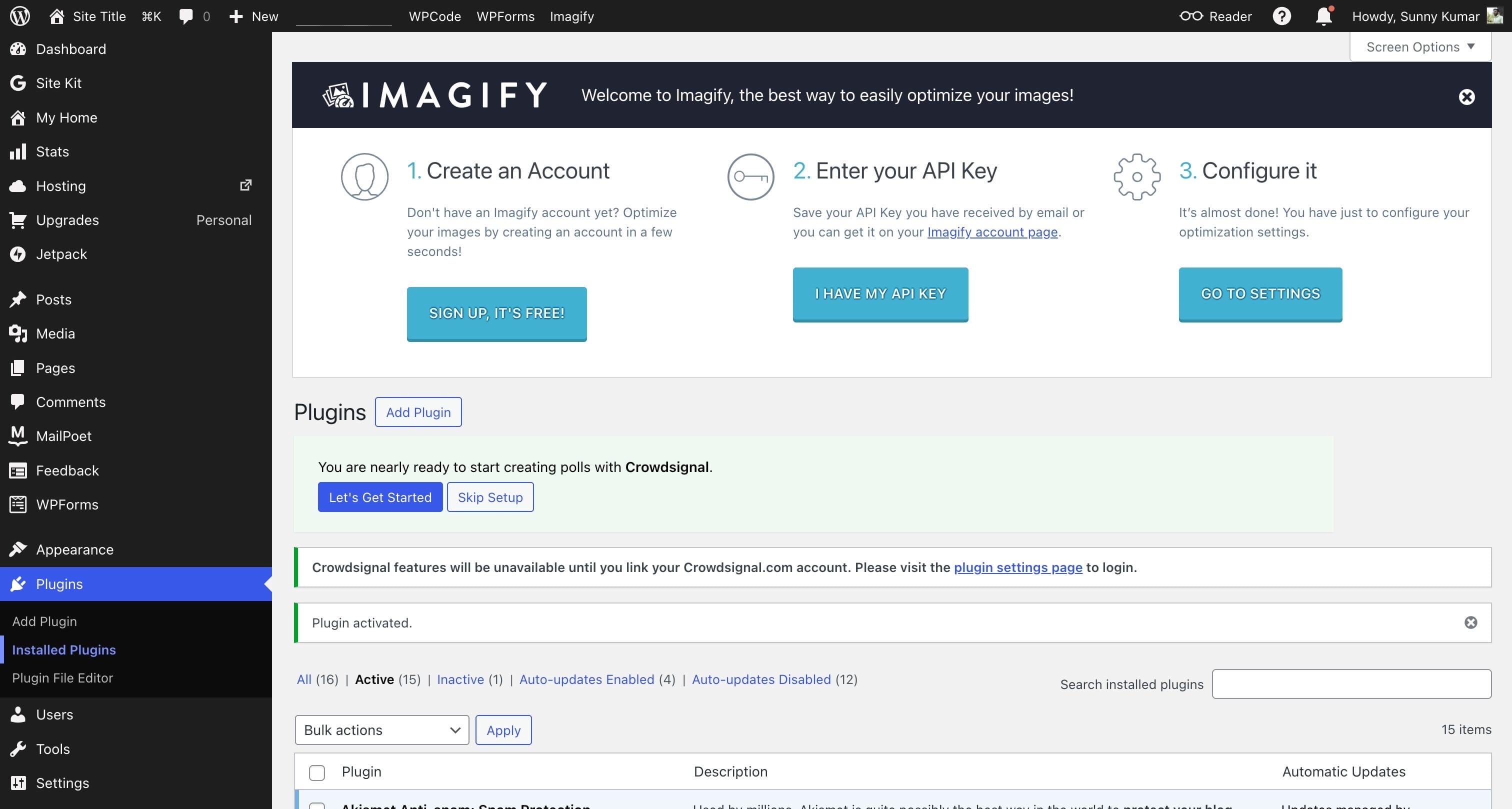
Image compression plugin that optimizes images, converts them to WebP and AVIF formats, and reduces file sizes without visible quality loss. Free tier: 20MB/month (roughly 200 images).
Why this matters: The Personal plan comes with only 6GB of storage. Every unoptimized image eats into that quota. Imagify automatically compresses images by 50-80% on upload, making your storage last significantly longer. Plus, WebP conversion improves page load speed — which directly helps SEO.
Verdict: Works perfectly. Bulk optimization feature accessible.
4 Plugin Categories That Are Blocked (And Why You Don’t Need Them)
Not everything works on WordPress.com. The platform blocks certain plugin categories because it handles those functions natively. Here’s what I found:
| Plugin Category | Examples Blocked | Why WordPress.com Blocks Them |
|---|---|---|
| Caching | W3 Total Cache, LiteSpeed Cache, WP Super Cache | WordPress.com runs its own server-level caching + CDN. A caching plugin would conflict with their infrastructure. |
| Security | iThemes Security, Really Simple Security, WP Hide | Brute-force protection, SSL certificates, DDoS mitigation, and malware scanning (Jetpack Scan) are all built in. |
| Backups | BackWPup, Duplicator, SiteGround Migrator | WordPress.com includes its own backup system through Jetpack. |
| Database Reset | WP Reset, Advanced WP Reset, WPMU Database Reset | These could break your managed hosting environment. |
WordPress.com maintains an official incompatible plugins list with 70+ blocked plugins. If you try to install one, you’ll see a “Why is this plugin not compatible with WordPress.com?” warning.
Here’s the thing: You genuinely don’t need these plugins on WordPress.com. The platform handles caching, security, and CDN at the server level — which is actually better than doing it yourself with plugins. On self-hosted WordPress, you’d spend $20-50/month on hosting that still needs caching and security plugins. WordPress.com bundles all of that into the $4/month plan.
What You Don’t Need a Plugin For (Built-in Features)
Before you go plugin-crazy, know that WordPress.com already includes features that would require plugins on self-hosted WordPress:
- Spam protection — Akismet is pre-installed and active
- SSL/HTTPS — automatic, free, always on
- CDN — built-in image and static file CDN
- Social sharing — Jetpack Social handles sharing buttons and auto-posting
- Basic analytics — Jetpack Stats for traffic, referrers, popular posts
- Newsletter subscriptions — built-in Subscribe block for email notifications
- Payment buttons — accept payments via Stripe without WooCommerce
- Contact forms — basic Jetpack form block (though WPForms is much better)
Don’t install a plugin for something WordPress.com already does. Check the built-in features list first.
FAQ
Can you install plugins on WordPress.com’s free plan?
No. Plugin installation requires a paid plan. The cheapest option is the Personal plan at $4/month (billed annually), which now includes full plugin access to 50,000+ plugins.
Do plugins on WordPress.com’s Personal plan work the same as on the Business plan?
The plugins themselves work identically. The difference is in developer tools — Business ($25/month) adds SFTP/SSH access, staging environments, daily backups with restore, and database access. For most bloggers, the Personal plan is plenty.
How many plugins can I install on WordPress.com?
There’s no hard limit on the number of plugins. However, the Personal plan has 6GB of storage, so keep an eye on plugins that store media or generate files. I installed 6 third-party plugins without any storage issues.
What happens if I install an incompatible plugin?
WordPress.com shows a “not compatible” warning in the plugin directory. You won’t be able to install it. The platform blocks about 70+ plugins that conflict with its managed infrastructure (caching, security, database tools).
Will my site URL really change when I install a plugin?
Yes. Your URL changes from yoursite.wordpress.com to yoursite.wpcomstaging.com after your first plugin install. Visitors to the old URL are automatically redirected. If you have a custom domain, this doesn’t affect you — your domain stays the same.
Summing Up!
I went into this test expecting limitations. What I found was the opposite — six of the most popular WordPress plugins installed and worked without any issues on a $4/month plan. Rank Math for SEO, WPForms for contact forms, Site Kit for analytics, MailPoet for email marketing, WPCode for custom code, and Imagify for image optimization. That’s a professional blogging toolkit for less than the price of a coffee.
Yes, some plugins are blocked — but only the ones WordPress.com handles natively (caching, security, backups). You genuinely don’t need them.
If you’ve been on the fence about WordPress.com because plugins required a $25/month plan, that barrier is gone. The $4 plan now gives you the same 50,000+ plugin library. For bloggers, freelancers, and small business owners, that’s a massive shift.



