

TL;DR: When WordPress downloads an index.php file instead of loading your site, the cause is almost always a PHP handler misconfiguration, a corrupted .htaccess file, or a cache plugin conflict. The fastest fix is to check your PHP version in cPanel’s MultiPHP Manager, then reset .htaccess to the WordPress default. Below are 8 proven fixes covering Apache, Nginx, Cloudflare, and malware scenarios.
I’ve dealt with this error more times than I’d like to admit — both on my own sites and while helping friends troubleshoot theirs.
You type in your domain, hit enter, and instead of your WordPress site loading normally, your browser downloads a file called index.php. You’re left staring at a blank page with a random file sitting in your Downloads folder.
The first time it happened to me, I panicked. I thought my site was hacked. Turns out, my hosting provider had quietly updated their PHP version and my .htaccess file was still referencing the old one. A 30-second fix once I knew what to look for.
In this guide, I’ll walk you through every cause of this error and exactly how to fix each one — whether you’re on shared hosting with cPanel, a VPS running Nginx, or using Cloudflare as a CDN. If you’re still getting started with WordPress, don’t worry — I’ll keep the steps clear and beginner-friendly.
Why Does WordPress Download a File Instead of Loading?
When you visit a WordPress site, your web server (Apache or Nginx) is supposed to hand the index.php file to the PHP interpreter, which processes it and sends back an HTML page to your browser.
When that chain breaks — when the server doesn’t know how to process .php files — it treats the file as a static download instead. Your browser receives it with a Content-Type header like application/octet-stream instead of text/html, and dutifully downloads it.
Here are the specific causes:
| Cause | How Common | Typical Scenario |
|---|---|---|
| PHP handler misconfiguration | Very common | Host updated PHP version but .htaccess still references the old one |
| Corrupted .htaccess file | Very common | Plugin conflict, manual edit gone wrong, or malware injection |
| Cache plugin conflict | Common | WP Super Cache, W3 Total Cache, or WP Rocket writing bad rules |
| AddHandler/AddType mismatch | Common | Old handler directive referencing PHP 5.6 or 7.4 that’s been uninstalled |
| File permissions | Moderate | Incorrect permissions preventing PHP from executing |
| Malware | Moderate | Injected code in .htaccess or wp-config.php |
| Cloudflare/CDN interference | Less common | Automatic Signed Exchanges (SXG) or header modification |
| Nginx PHP-FPM issue | Less common | Missing location ~ \.php$ block or dead PHP-FPM socket |
Now let’s fix each one.
Fix 1: Check Your PHP Handler Configuration
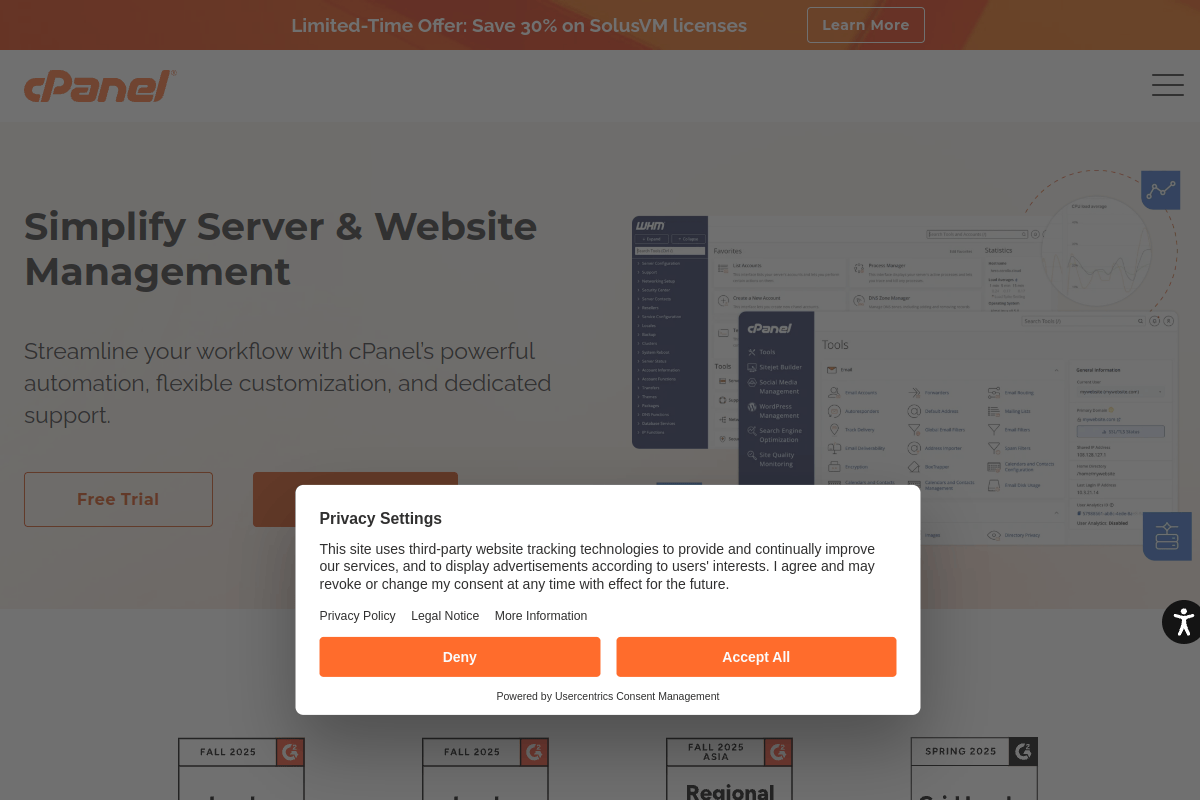
This is the #1 cause and the fix I reach for first every single time. When your hosting provider upgrades PHP (say from 7.4 to 8.1), the handler directive in your .htaccess file may still reference the old version. Since that version no longer exists on the server, Apache doesn’t know how to process .php files anymore.
As of February 2026, 42.9% of WordPress sites still run PHP 7.4 — a version that reached end-of-life in November 2022. When hosts finally force-upgrade these sites, the download-instead-of-open error is one of the most common results.
How to Fix It in cPanel
- Log into cPanel
- Go to Software → MultiPHP Manager
- Check which PHP version is assigned to your domain
- If it says something outdated (PHP 7.4 or lower), select your domain and switch to PHP 8.1 or 8.2
- Open your
.htaccessfile and look for old handler lines like:
AddHandler application/x-httpd-php74 .php
AddHandler application/x-httpd-php56 .php
If you find lines like these, remove them. The correct cPanel-generated handler should look like this:
# BEGIN cPanel-generated handler, do not edit
AddHandler application/x-httpd-ea-php81 .php .php81 .phtml
# END cPanel-generated handler
After making changes, reload your site. In most cases, this alone solves the problem.
Fix 2: Reset Your .htaccess File
The .htaccess file controls how Apache handles URL routing in WordPress. If it gets corrupted — through a bad plugin update, a manual edit, or malware — WordPress can break in all sorts of ways, including the download-instead-of-open error.
Here’s how to reset it to the WordPress default:
- Connect to your server via FTP/SFTP (using FileZilla or similar) or use cPanel File Manager
- Navigate to your WordPress root directory (usually
public_html) - Enable “Show Hidden Files” in your file manager settings (dotfiles are hidden by default)
- Download a backup of the current
.htaccessfile to your computer - Delete all the contents of
.htaccessand paste this default WordPress code:
# BEGIN WordPress
<IfModule mod_rewrite.c>
RewriteEngine On
RewriteBase /
RewriteRule ^index\.php$ - [L]
RewriteCond %{REQUEST_FILENAME} !-f
RewriteCond %{REQUEST_FILENAME} !-d
RewriteRule . /index.php [L]
</IfModule>
# END WordPress
Save the file and visit your site. If it loads normally, the old .htaccess was the problem.
Important Note
Check for .htaccess files in multiple locations — not just public_html. Some servers have a second .htaccess file one directory above your WordPress root. I’ve seen cases where the root-level file was fine but a parent directory .htaccess was overriding it.
Fix 3: Remove AddHandler/AddType Directives
Sometimes the .htaccess file doesn’t need a full reset — it just has stale AddHandler or AddType lines that reference PHP versions no longer installed on the server.
Open your .htaccess file and search for any lines like these:
AddHandler application/x-httpd-php5 .php
AddHandler application/x-httpd-php52 .php
AddHandler application/x-httpd-php54 .php
AddHandler application/x-httpd-php56 .php
AddHandler application/x-httpd-php70 .php
AddHandler application/x-httpd-php71 .php
AddHandler application/x-httpd-php74 .php
AddType application/x-httpd-php .php
Comment them out by adding # at the beginning of each line, or delete them entirely. Save the file and test your site.
If you’re not sure which handler line is correct for your server, leave it to cPanel’s MultiPHP Manager — it will auto-generate the right one (see Fix 1).
Fix 4: Deactivate Cache Plugins
Cache plugins like WP Super Cache, W3 Total Cache, WP Fastest Cache, and WP Rocket write their own rules into .htaccess. After a PHP version change or a plugin update, these rules can conflict with the server configuration and trigger the download error.
If You Can Access wp-admin
- Go to Plugins → Installed Plugins
- Deactivate your caching plugin
- Visit your site’s front end. If it loads, the cache plugin was the culprit
- Either reconfigure the plugin or switch to a different caching solution
If wp-admin Is Also Broken
When the entire site is affected, wp-admin usually won’t load either. Here’s how to deactivate plugins without dashboard access:
Method 1 — Via FTP/File Manager:
- Navigate to
/wp-content/plugins/ - Rename the cache plugin folder (e.g.,
wp-super-cache→wp-super-cache.disabled) - WordPress will automatically deactivate it since the folder no longer matches
- Test your site
Method 2 — Via phpMyAdmin (deactivates ALL plugins):
- Open phpMyAdmin from your hosting panel
- Select your WordPress database
- Open the
wp_optionstable - Find the row where
option_name=active_plugins - Change the
option_valuetoa:0:{}
This deactivates every plugin at once. If your site loads after this, re-enable plugins one at a time until you find the one causing the issue.
Fix 5: Check File Permissions
Incorrect file permissions can prevent the server from executing PHP files. WordPress has specific permission requirements:
| File/Directory | Required Permission |
|---|---|
| Directories | 755 |
| Files | 644 |
wp-config.php | 600 or 640 |
If you have SSH access, run these commands to fix permissions across your entire WordPress installation:
# Fix directory permissions
find /path/to/wordpress/ -type d -exec chmod 755 {} \;

# Fix file permissions
find /path/to/wordpress/ -type f -exec chmod 644 {} \;

# Secure wp-config.php
chmod 640 /path/to/wordpress/wp-config.php
Replace /path/to/wordpress/ with your actual WordPress root path (usually /home/username/public_html/).
Never Use 777 Permissions
Setting any file or directory to 777 means anyone on the server can read, write, and execute it. This is a serious security risk — especially on shared hosting where other accounts share the same server. If you’ve seen a tutorial recommending 777, ignore it.
Fix 6: Scan for Malware
If none of the above fixes worked, malware could be the cause. Hackers frequently inject obfuscated code into .htaccess, wp-config.php, and theme files like header.php or functions.php.
According to Patchstack’s 2025 security report, 7,966 new vulnerabilities were discovered in the WordPress ecosystem in 2024 — a 34% increase over 2023. And WordPress sites get attacked every 32 minutes on average.
Here’s how to check for malware:
- Verify WordPress core files — if you have WP-CLI installed, run
wp core verify-checksums. This compares your core files against the official WordPress.org checksums. Any modified files will be flagged - Check
.htaccessfor injected code — look forbase64_decode,eval(, or obfuscated strings that look like random characters - Review
wp-config.php— make sure there are no unfamiliarrequireorincludestatements at the top or bottom - Install Wordfence — run a full malware scan from Wordfence → Scan. It checks all WordPress files, themes, and plugins against known malware signatures
- Check recently modified files — via SSH, run
find /path/to/wordpress/ -mtime -7 -type fto list all files modified in the last 7 days
If malware is confirmed, the cleanest approach is to reinstall WordPress core. Go to your WordPress dashboard → Updates → Re-install Now. This replaces all core files without touching your wp-content folder (themes, plugins, uploads are safe). For more on keeping your WordPress site secure and running at peak performance, proper server configuration is essential.
Fix 7: Cloudflare and CDN Settings
This one surprised me the first time I encountered it. If your site is behind Cloudflare or another CDN, the proxy layer can sometimes interfere with how PHP files are served.
Cloudflare-specific fix:
- Log into your Cloudflare dashboard
- Go to Speed → Optimization
- Look for Automatic Signed Exchanges (SXGs) — disable it
- Purge the Cloudflare cache (Caching → Purge Everything)
- Test your site
Cloudflare’s SXG feature can cause browsers to download pages instead of rendering them. Multiple reports in the Cloudflare community forums confirm this. Disabling SXG and purging the cache fixes it immediately.
Also check your Page Rules — if you have a rule that sets Cache Everything without excluding PHP files, that can cause the same behavior. If your WordPress site also uses IP detection or geolocation features, make sure your Cloudflare settings pass the correct headers through.
Fix 8: Enable WordPress Debug Mode
If you’ve tried multiple fixes and still can’t figure out the cause, WordPress debug mode can reveal the underlying error.
Open wp-config.php via FTP or File Manager, and add these lines before the /* That's all, stop editing! */ comment:
// Enable debugging
define( 'WP_DEBUG', true );

// Log errors to /wp-content/debug.log
define( 'WP_DEBUG_LOG', true );

// Hide errors from visitors
define( 'WP_DEBUG_DISPLAY', false );
Now try loading your site. Even if it still downloads a file, WordPress will log the actual error to /wp-content/debug.log. Download that file and look for PHP fatal errors, missing module warnings, or file permission denials.
Common errors you might find:
PHP Fatal error: Uncaught Error: Call to undefined function— a plugin requires a PHP extension that’s not installedPHP Warning: require_once(...): Failed to open stream— a file is missing or permissions block accessmod_rewrite module is not loaded— Apache’s rewrite module is disabled
Quick Note: Always disable debug mode after troubleshooting by setting
WP_DEBUGback tofalse. Leaving it enabled on a production site can expose sensitive error details and slow down performance.
How to Prevent This From Happening Again
After you’ve fixed the immediate issue, take these steps to make sure it doesn’t come back:
- Keep PHP updated — WordPress recommends PHP 8.1 or higher as of 2026. Set a calendar reminder to check your PHP version quarterly in cPanel’s MultiPHP Manager
- Back up
.htaccessbefore changes — download a copy before installing new plugins, updating WordPress, or switching themes - Use a staging environment — test plugin updates and PHP version changes on a staging site before applying to production
- Monitor your site — use an uptime monitor (UptimeRobot, Jetpack) that pings your site every 5 minutes. If your site starts returning a file download instead of HTML, you’ll know instantly
- Install a security plugin — Wordfence or Sucuri can detect
.htaccessmodifications and malware injections in real-time
If your WordPress site isn’t loading at all, check out our full troubleshooting guide for that scenario as well — the causes overlap but the debugging approach is slightly different.
Frequently Asked Questions
Why is my WordPress site downloading a file instead of opening?
Your web server isn’t processing PHP files correctly. The most common causes are an outdated PHP handler directive in your .htaccess file, a corrupted .htaccess file, or a cache plugin conflict. Check cPanel’s MultiPHP Manager first, then reset .htaccess to the WordPress default.
How do I fix WordPress downloading index.php?
Start with Fix 1 in this guide: check your PHP handler in cPanel’s MultiPHP Manager and make sure it matches your current PHP version. If that doesn’t work, reset your .htaccess file by replacing its contents with the default WordPress rewrite rules.
What is the default WordPress .htaccess code?
The default WordPress .htaccess code is: <IfModule mod_rewrite.c> RewriteEngine On RewriteBase / RewriteRule ^index\.php$ - [L] RewriteCond %{REQUEST_FILENAME} !-f RewriteCond %{REQUEST_FILENAME} !-d RewriteRule . /index.php [L] </IfModule> wrapped between # BEGIN WordPress and # END WordPress comments.
Can cache plugins cause WordPress to download files?
Yes. Cache plugins like WP Super Cache, W3 Total Cache, and WP Rocket write rules to your .htaccess file. After PHP version changes or plugin updates, these rules can conflict with server configuration and cause the download error. Deactivate caching plugins to test.
How do I deactivate WordPress plugins without admin access?
Connect via FTP or cPanel File Manager, go to /wp-content/plugins/, and rename the plugin folder you want to disable (e.g., add .disabled to the folder name). Alternatively, in phpMyAdmin, change the active_plugins option value in wp_options to a:0:{} to deactivate all plugins.
Does this error mean my WordPress site was hacked?
Not necessarily — most cases are caused by PHP handler or .htaccess misconfigurations. However, malware can inject code into .htaccess that triggers this behavior. If basic fixes don’t work, run a malware scan using Wordfence and verify core files with wp core verify-checksums.
Can Cloudflare cause WordPress to download instead of load?
Yes. Cloudflare’s Automatic Signed Exchanges (SXG) feature has been reported to cause this issue. Disable SXG in your Cloudflare dashboard under Speed → Optimization, then purge the cache. Also check that your Page Rules don’t cache PHP files.
How do I check what PHP version my WordPress site is using?
In cPanel, go to Software → MultiPHP Manager to see the PHP version assigned to each domain. Alternatively, create a temporary info.php file with <?php phpinfo(); ?> in your WordPress root, visit it in a browser, then delete it immediately after checking (it exposes server details).
Summing Up!
The “WordPress download file instead of opening in browser” error is almost always a server-side configuration issue — not a WordPress bug. In my experience, 80% of cases are solved by either fixing the PHP handler in cPanel (Fix 1) or resetting the .htaccess file (Fix 2). The remaining 20% split between cache plugin conflicts, malware, and CDN settings.
Start with Fix 1 and work your way down. If nothing works after trying all eight fixes, contact your hosting provider’s support team — the issue may be on their end (server-level PHP configuration that you can’t access). And if you’re already thinking about switching hosts, that’s a conversation worth having if this keeps recurring.
Have you dealt with this error before? Which fix worked for you? Drop a comment below — I read every one and respond personally. And if you’re working on setting up your WordPress site’s meta tags or other configuration, make sure your server foundation is solid first!



