
Do you want to add meta tags to WordPress without using any plugins but don’t know how? Don’t worry; you will after reading this post.
Adding meta tags is essential to let search engines know what your article is about and get to the top of the search page. But the question is how to do it. You must have searched for this question and landed on this article. I am sure you won’t need to read any other article after reading this article, and you will be able to add meta tags in WordPress without plugins.
So, without delay, let’s dive into the article and make your posts more appealing to search engines…
What are Meta Tags?
Meta Tags are a type of HTML tags that give search engines information about a webpage’s content. It helps users decide whether the information is useful or not.
There are different types of meta tags: title tags, meta descriptions, and Meta Keywords. If you correctly use these meta tags, you can enhance search engine results, increase click-through rates, and provide a better user experience. Using free tools like Attrock Meta Tag Analyzer, you can quickly analyze your web pages and optimize these tags effectively.
Advantages of Adding Meta Description
Now that you are aware of meta tags let’s learn about their advantages:
- Helps improve ranking: Many SEO experts and professional bloggers claim that adding a meta tag helps improve search engine ranking. Adding a title tag is the most important among title tags, description tags, and keyword tags. It helps search engines understand the page’s content.
- Provides better user experience: Writing a clear, well-defined meta-description will help users understand the article better. It will also make it easier for users to find the information, giving a better experience.
- Increase click-through rates: A clear meta title, description, and keyword help increase your website’s click-through rates, bringing more traffic to your page.
Adding Meta Tags in WordPress (Without Plugin)
I am sure you are excited to learn how to add meta tags to a WordPress site after reading the above section. Right?
Let’s learn about them….
Method 1: By using the Excerpt option
You can add a meta description using the “Excerpt” option provided by WordPress.
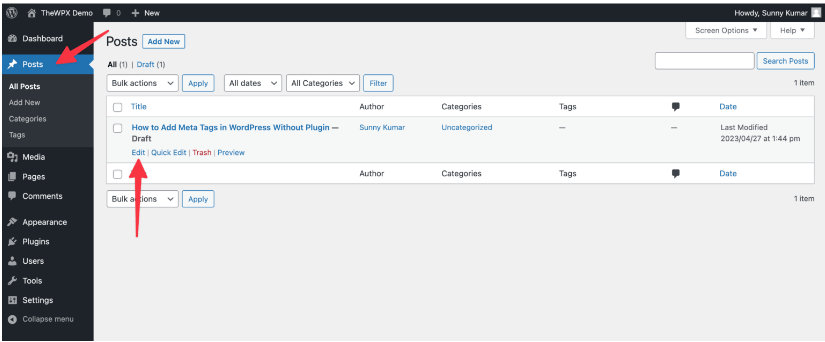
For Gutenberg editor users, the steps are as follows:
- To use this method, first log in to your WordPress account.
- Go to “Posts,” and under that, select “All Posts”.
- Then click on the “Edit” option.
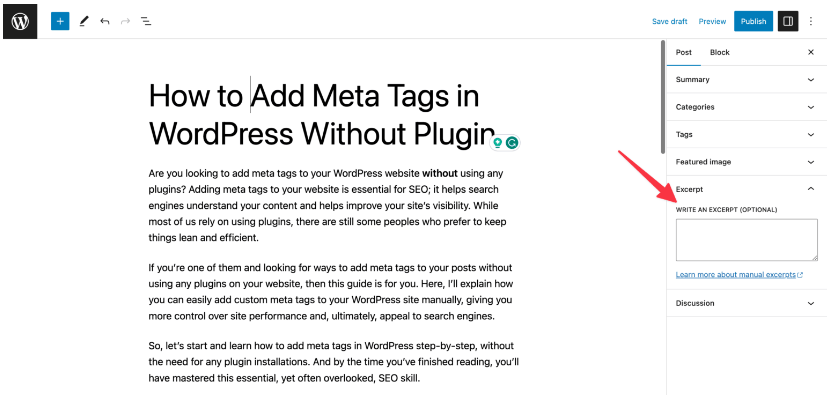
- You will see a post editor open on the right.
- Search for the “Excerpt” option under the “Post” tab.
- You can write a meta description for your post in the excerpt box that appears.
For Classic Editor Users, you can follow these steps:
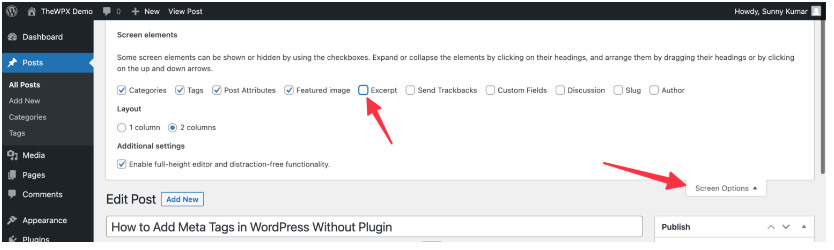
- Open the “Post”.
- Click on the “Screen Options”. (as shown in the image)
- A drop-down menu will be opened; see the “Excerpt” option and enable that.
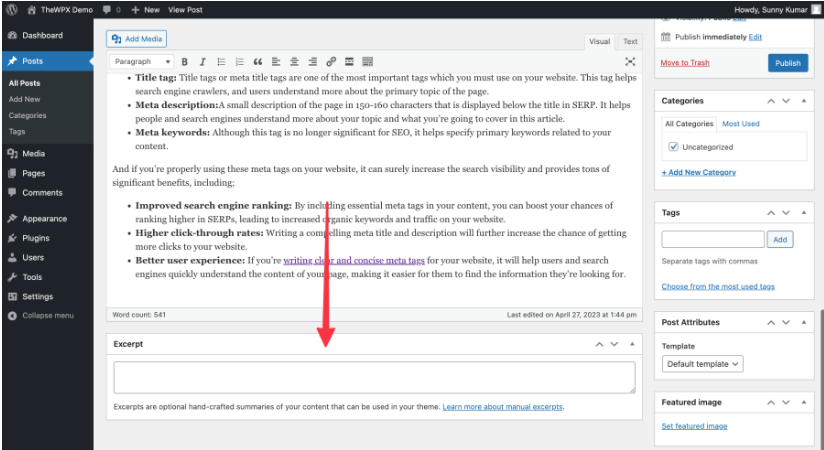
After performing all these steps, you will see an Excerpt box below the post editor. You can write a summary, or we can say a mega description in the box for your post.
So, all these were the steps you needed to follow to add a meta tag to your WordPress without a plugin. I am sure you must have found it relatively easy.
Method 2: Adding Code to functions.php or Code Snippets
If you are good at coding, you can use this method to add meta tags to WordPress.
The steps are as follows:
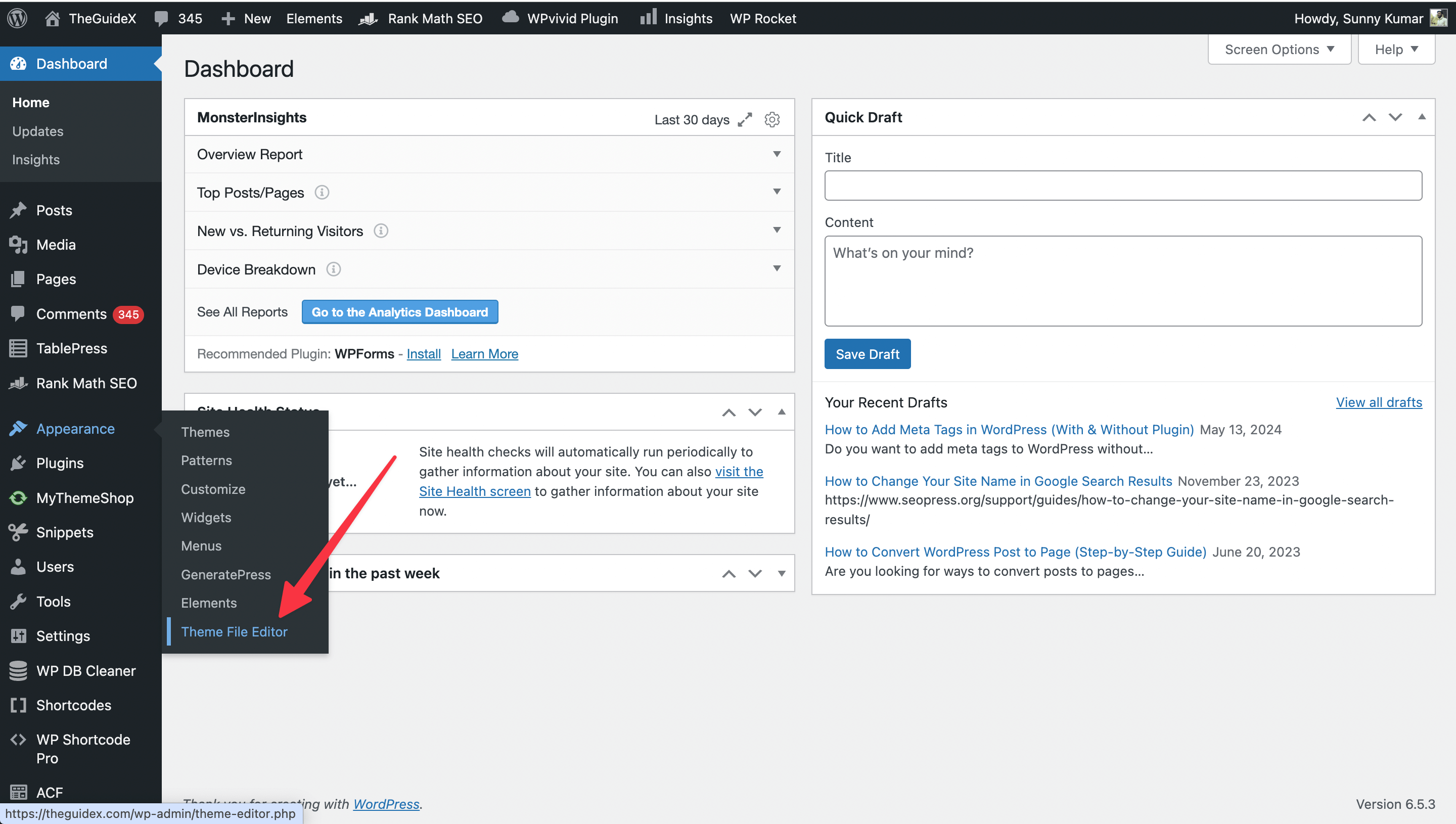
- Log in to your WordPress Dashboard.
- Go to “Appearances” and then “Theme File Editor.”
✍️ Author’s Note:
Instead of adding your code to functions.php file, I’ll recommend installing “Code Snippet” plugin on your website and adding code to it. It’s because this code can disappear automatically if you change your existing theme.

- Click on the “Theme Function” (function.php) on the right. (you can refer to the image)
- Copy the code shared below and paste it into the function.php file.
- Click on the “Update File” option and save it.
✍️ Author’s Note:
This method will extract the first 160 words from your post and article and will show it as a meta tag. Moreover, it will also automatically extract the post or past category and display it as a meta keyword.
Adding Meta Tags in WordPress (With Plugin)
For all my readers, I have bought this bonus section for you. If you think adding a meta tag is difficult using the above methods, you always have the option of choosing a plugin. Moreover, using plugins also helps improve your website’s search engine ranking.
You can use the following plugins to add meta tags in WordPress:
1. Rank Math SEO

Rank Math SEO is one of my favorite plugins, and it comes with the most powerful features. I bet you can’t find a better plugin than Rank Math SEO.
If you don’t believe me, then you can check its installations. It has over 1 million active installations because of its wonderful features like automatic alt tag generation, pre-built scheme tags, video sitemap, and many more. It is very easy to use; you won’t have any difficulty using this plugin.
Moreover, their team is always working to improve this plugin by making changes according to the change in latest search engine algorithms. They are the best in their work and always allow you to be one step ahead of your competitors. I highly recommend using this plugin without any second thoughts.
2. Yoast SEO

Another one of the most valuable plugins is Yoast SEO. It is also one of the oldest plugins. I was a fan of this plugin before Rank Math SEO entered the market. But always remember, Old is Gold.
This plugin has every feature to meet all types of SEO needs. You can use this plugin at no cost. Yes, you heard it right. It is available for free. Isn’t it amazing? They also have a pro plan if you want to use more features.
This is not all; the knowledgeable team of Yoast SEO is constantly working to provide the updated version of this plugin, which will help to increase the working efficiency of your website. AND AND AND… this plugin works very well with all websites. Still here, go and use this plugin.
3. All-in-One SEO
Last but not least, All-in-One SEO. As the name implies, this plugin has all the essential features to help you with SEO ranking. This plugin is managed and created by owners of WPBeginner, WPCode, OptinMonster, etc.
This plugin is quite popular among bloggers because of its features like XML sitemap creation, SEO content analysis, and social media integration. Another reason why most bloggers prefer this plugin is its ease of use.
You can use this plugin easily, even if you are a beginner. They provide a detailed guide on how to use this plugin.
Frequently Asked Questions (FAQs)
If you still have some questions about meta tags, you can refer to this FAQ section. I have answered mostly of the questions asked by my followers. I hope after this section, no doubt will be left.
Q. Can Meta Tags help increase ranking?
A big yes. Meta tags can surely help you improve ranking, but the condition is that you use them properly. They are part of technical SEO and can help you increase click-through rate and search visibility.
Q. What Type of Meta Tags Can I Use on My Website?
Meta tags are one of the easiest and most effective ways to improve your website’s search visibility. There are various Meta tags that you can use on your website, which are as follows:
- Title tag
- Keywords
- Description tag
- Language
- Robots
- Canonical
- OpenGraph
- Responsive design tags
- Twitter tags
- Alternative text tags
- Author tags, and
- Rating tag
Q. What is Better Using Plugins or Without Plugins to Add Meta Tags?
Using plugins is far easier than without them. So, I recommend using plugins to add meta tags. There are many plugins that you can use to add meta tags, such as Rank Math SEO, Yoast SEO, and All-in-One SEO.
Final Words!
To conclude, adding a meta tag to your website can surely help boost its ranking. You can add a meta tag using a plugin or without using a plugin.
Adding a meta tag to WordPress without a plugin could be cumbersome and time-consuming. So, I highly recommend using plugins. You can use plugins like Rank Math SEO, Yoast SEO, and All-in-One SEO.
That’s all from my side. I hope this article helped you to find the answers to your questions.
Thank you for being wonderful readers.
Happy Blogging!





This blog was super informative! Learning how to add meta tags in WordPress, both with and without a plugin, was exactly what I needed. I’m excited to apply these tips and enhance my site’s SEO. Thanks for the clear and practical guide!