

Disclaimer: “This post contains affiliate links. If you make a purchase through these links, I may earn a commission at no extra cost to you.“
TL;DR: WordPress.com’s AI website builder lets you type a plain-English description and get a fully designed WordPress site — with navigation, hero section, blog feed, images, and contact page — in under 10 minutes. I tested it in April 2026 and walked away genuinely impressed. Free trial includes 30 AI prompts, no credit card needed. Paid plans start at $4/month.
What Is the WordPress.com AI Website Builder?
The WordPress.com AI website builder is a tool that creates a complete, live WordPress website from a text prompt. You describe what you want in plain language, answer 2-3 follow-up questions, and the AI generates pages, layouts, written content, images, and navigation — all in about 60 seconds.
WordPress.com launched the AI builder in April 2025 and rolled out a major update in August 2025 with improved color palettes, designer-curated font pairings, and better AI-generated logos.
As of June 2026, it’s one of the most streamlined ways to go from “I need a website” to “here’s my live site” that I’ve tested.
I’ve been building WordPress sites for over a decade. I had to see if this actually delivers. Here’s my full, honest walkthrough.
How Does the WordPress.com AI Builder Actually Work?
The process has four phases: prompt → conversation → generation → customization. The entire flow took me under 10 minutes.
You start at wordpress.com/ai-website-builder. The landing page is clean — a prompt box front and center, with suggestion chips like “Create a bakery site” and “Design a portfolio.”
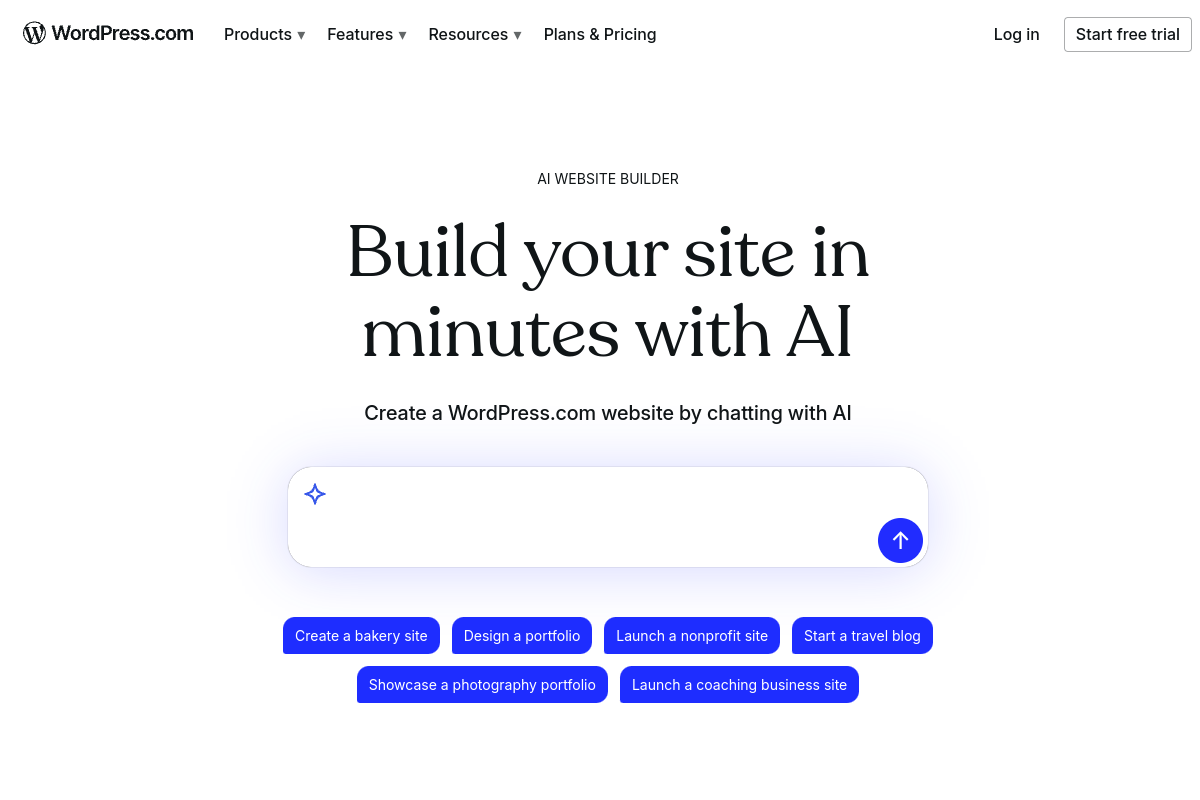
You don’t need to know HTML, CSS, or how WordPress works internally. The AI handles layout, styling, content, and images. You just describe what you want.
What sets this apart from other AI tools? The result is a real WordPress.com site — not throwaway code or a static mockup. Hosting, security, SSL certificates, and software updates are all included.
Step 1: What Happens When You Type a Prompt?
I started with this description:
“Create a tech blog about SEO tips, WordPress tutorials, and digital marketing guides”
One sentence. No wireframes, no color codes, no technical specs. Just plain English.
After hitting submit, I created a free account (takes 30 seconds with Google login) and the AI immediately started a conversation.
Step 2: What Questions Does the AI Ask?
This is where the experience surprised me. Instead of guessing everything, the AI asked three focused questions — like a web designer would during a discovery call.
Question 1: Site title. “What site title should appear in your browser tab and search results?” It suggested creative names based on my prompt: “SEO & WP Lab,” “The WordPress Growth Blog,” “Rank & Convert.” I typed my own.
Question 2: Site description. “What short site description should show in search results and social previews?” Again, it provided examples to spark ideas. I wrote: “Practical SEO strategies and WordPress tutorials to help bloggers grow organic traffic.”
Question 3: Confirmation. A summary card showed my title, description, and topic — with a “Create my site” button and a “No, update details” option if anything looked off.
Total time for this conversation: about 90 seconds. Three questions, three answers, done.
Step 3: How Fast Does the AI Generate the Site?
I clicked “Create my site” and watched the AI work in real time. A progress panel appeared showing each step as it completed:
- Applied button styles ✓
- Applied fonts ✓
- Applied color theme ✓
- Created initial layout and pages ✓
- Applied images ✓
- Created site logo ✓
- Site build complete ✓
The entire generation took roughly 60 seconds. When it finished, I was looking at a fully designed website inside the WordPress block editor — ready for customization or publishing.
What Exactly Did the AI Generate?
Here’s everything the AI created from my one-sentence prompt. This is the part that genuinely impressed me:
| Section | What It Built |
|---|---|
| Navigation | Header menu with About, Guides, Services, Contact |
| Hero Section | Bold headline: “SEO tips that actually grow your traffic” + CTA button + AI-generated dashboard image |
| Blog Feed | Dynamic section pulling in posts with featured images and dates |
| Resources | Two-column layout with image + description + “Explore guides” button |
| Subscribe | Email opt-in form with headline and AI-generated sidebar image |
| About | Two-column layout describing the blog’s mission + “Read story” CTA |
| Services | Three-column grid with AI images and service descriptions |
| Testimonials | Three user testimonials with star ratings (fictional but contextually relevant) |
| Contact | Contact details, social icons, and an embedded map |
| Footer | Site branding, social links, “Designed with WordPress” |
The AI also created four separate pages (About, Guides, Services, Contact) with working navigation linking them together. It generated a site logo and selected a blue color scheme that matched the “tech blog” vibe I described.
This wasn’t a skeleton with “Lorem ipsum” text. The copy was specific to SEO and WordPress. The images showed keyword research notebooks, analytics dashboards, and SEO audit tools. You could almost publish this as-is — though you’d want to replace the generated copy with your own voice and real testimonials.
Can You Customize the AI-Generated Site?
Absolutely — and this is where the experience felt truly collaborative.
After the site was built, an AI assistant stayed available in a sidebar chat. It offered quick-action buttons:
- Customize colors — browse AI-generated color palettes
- Change page layout — swap between different layout structures
- Choose new fonts — pick from designer-curated font pairings
- Add new page — generate entirely new pages via prompt
- What else can you do? — discover additional AI capabilities
I clicked “Customize colors” and described what I wanted: “minimal and clean with dark navy background, white text, and teal accent colors — professional tech blog look.”
The AI generated four custom palette options in seconds. Each showed a live preview of how my entire site would look with those colors.
I picked the first one, and the entire site theme updated in about 3 seconds.
You can also use general language for design changes: “make this section feel more modern,” “give me bolder fonts,” or “change the hero layout.” The AI interprets your intent and applies changes — but you approve everything before it takes effect.
The AI builds with you, not instead of you. You stay in control of every decision.
What Are the Pros and Cons of WordPress.com’s AI Builder?
What I Liked
1. The speed is legitimate. Prompt to fully designed site: under 10 minutes. That includes the conversation, generation, and color customization. Setting up a WordPress site manually takes me 8-17 hours — I’ve done it dozens of times. This compressed 80% of that setup work into minutes.
2. The conversational approach reduces overwhelm. Instead of dropping you into a complex editor with 200 settings, it asks questions like a human designer would. “What’s your site title?” “How should I describe it?” It removes the “blank screen paralysis” that stops most beginners.
3. AI-generated images are contextually relevant. The images matched my SEO/WordPress theme — analytics dashboards, keyword research notebooks, SEO audit tools. No hunting through stock photo sites. According to WordPress.com’s August 2025 update, they improved image generation and AI logo quality significantly.
4. It’s a real WordPress site with real hosting. Not a static HTML export. A full WordPress.com site with block editing, managed hosting, automatic security updates, SSL, and CDN. This matters for long-term SEO performance and site credibility.
5. Customization through chat is faster than manual settings. Describing “dark navy with teal accents” and getting four previewed options beats clicking through color pickers for 20 minutes.
What Could Be Better
The designs can feel similar across sites. Layouts are built using WordPress block patterns based on the Twenty Twenty-Four theme. Sites generated by the AI tend to share structural similarities. You’ll want to customize beyond the defaults for a distinctive brand look.
The generated copy is smart but generic. The AI writes contextually relevant content, but it lacks your personal voice, real customer testimonials, and specific case studies. Plan to replace the generated text with your own writing — that’s where the real value comes in.
SEO plugins require the Business plan ($25/month). If you want tools like Rank Math or Yoast for on-page SEO, you’ll need the Business plan. The Personal ($4/month) and Premium ($8/month) plans don’t support third-party plugin installation.
How Much Does WordPress.com’s AI Builder Cost?
| Plan | Monthly Price | Key Features |
|---|---|---|
| Free Trial | $0 | 30 AI prompts to build and preview (can’t publish to live URL) |
| Personal | $4/month | Publish your site, free domain for first year, unlimited AI prompts |
| Premium | $8/month | Personal features + live chat support + WordPress.org plugins |
| Business | $25/month | Premium features + install any plugin + AI Assistant for ongoing editing |
| Commerce | $45/month | Business features + WooCommerce tools for online stores |
The free trial is genuinely free — no credit card required. You get 30 AI prompts to build your site, customize it, and preview it. The only limitation is you can’t publish to a live URL without choosing a paid plan.
If you’re looking for a deal, check our WordPress.com coupon code guide — you can often save 30% or more on annual plans.
How Does AI Compare to Building a WordPress Site Manually?
I’ve set up dozens of WordPress sites the traditional way over the past decade. Here’s an honest side-by-side comparison based on my actual experience:
| Task | Manual Setup | AI Builder |
|---|---|---|
| Theme browsing and selection | 1-3 hours | Handled automatically |
| Layout design and page structure | 2-5 hours | ~60 seconds |
| Writing initial homepage content | 3-6 hours | Generated in seconds (needs personalization) |
| Finding and editing images | 1-2 hours | AI-generated images included |
| Color palette and font selection | 30-60 minutes | 2 minutes via chat |
| Navigation and multi-page setup | 15-30 minutes | Auto-generated with pages |
| Total estimated time | 8-17 hours | Under 10 minutes |
The AI handles roughly 80% of the initial setup. You still need to personalize the content, upload your own photos, and fine-tune design details. But the foundation — layout, structure, navigation, initial content, images — is solid and saves hours of repetitive work.
For bloggers just getting started, this is a massive time-saver. You skip straight past the setup phase and into creating content — which is what actually drives traffic and revenue.
Who Should Use the WordPress.com AI Website Builder?
The WordPress.com AI builder is the right fit for:
- Bloggers who want a professional site without learning web design
- Freelancers who need a portfolio site up this week, not next month
- Small business owners who’ve been “meaning to build a website” for months
- Side project creators who want to test an idea fast without hiring a developer
- Anyone who gets paralyzed by blank screens and too many settings
It’s not designed for complex membership platforms, multi-vendor marketplaces, or heavily customized web applications. For those, you’d need a self-hosted WordPress setup with custom development.
But for blogs, portfolios, landing pages, service-based business sites, event blogs, and personal brand sites? It handles those well.
FAQ
How long does it take to build a website with WordPress.com’s AI builder?
The AI generates a complete site in about 60 seconds. Including the chat conversation and basic customization (colors, fonts), expect under 10 minutes total. Personalizing the content takes additional time depending on how thorough you want to be.
Is the WordPress.com AI website builder free to try?
Yes. You get 30 free AI prompts with no credit card required. You can build, customize, and preview your entire site for free. Publishing to a live URL requires a paid plan starting at $4/month.
Can I edit the AI-generated site manually afterward?
Yes. The AI uses the standard WordPress block editor (Gutenberg), so you can manually edit every block, image, heading, and layout element. The AI assistant also stays available for ongoing changes via chat.
What kinds of websites can I create with the AI builder?
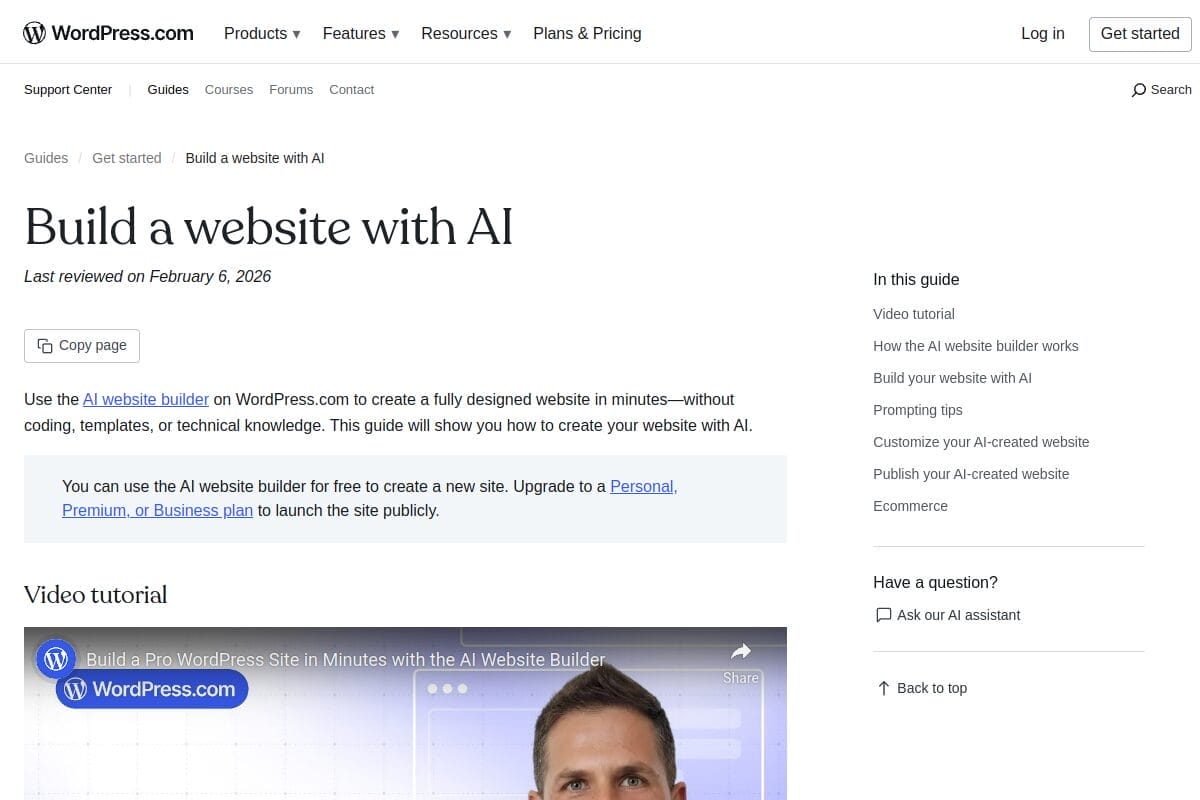
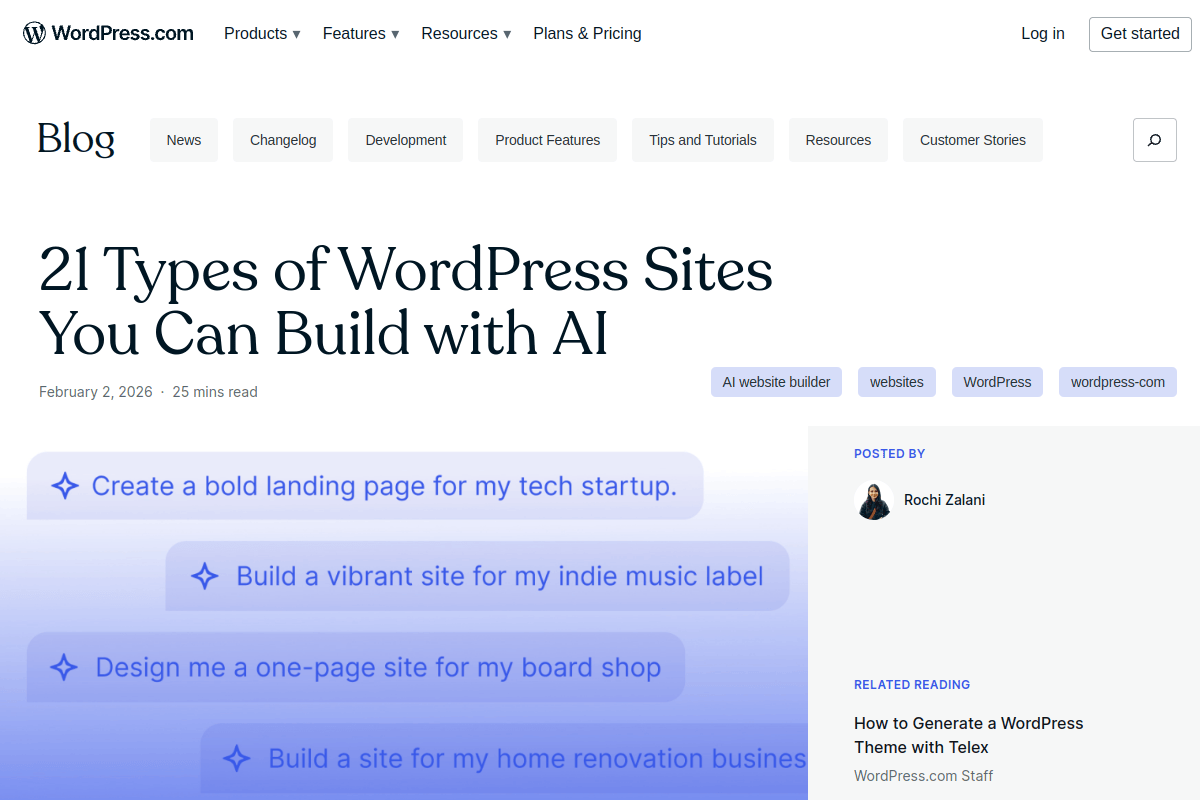
WordPress.com published a guide covering 21 types of sites you can build: blogs, portfolios, restaurants, nonprofits, coaching sites, photography showcases, church websites, event pages, and more.
Does the AI builder work for e-commerce stores?
The AI builder focuses on informational and service-based sites. For online stores, you’d need to add WooCommerce manually after the initial build, which requires the Commerce plan ($45/month).
What’s the difference between the AI Builder and the AI Assistant?
The AI Builder creates new sites from scratch via conversational prompts. The AI Assistant (launched February 2026) is for managing existing sites — it rewrites content, generates images, adjusts layouts, and handles design changes inside the editor.
Summing Up!
I went in skeptical and came out impressed. The WordPress.com AI website builder compressed what normally takes me 8-17 hours into under 10 minutes. The generated designs aren’t flawless — they can feel template-ish, and the AI copy needs replacing with your real voice and stories. But as a starting foundation? It’s genuinely useful.
If you’ve been putting off building a website because the “getting started” phase felt overwhelming, this removes that barrier entirely. Describe what you want in plain English, answer a few questions, and you’ve got a live site.
Try the free trial — 30 prompts, no credit card. See for yourself whether it clicks for you.



